Best Office Mouse for Silent Clicks and All-Day Comfort
By Lars Nystrom • 29th Sep

At a glance
For quiet, fixed-desk Windows work, the CHERRY GENTIX SILENT is the clearest fit: a wired USB-A mouse with silent switches, a symmetrical shape, a 1,000 dpi sensor, and a simple three-button layout.
- Best overall fit: Choose it when quieter primary clicks, no battery management, and a straightforward ambidextrous design matter more than wireless mobility or customization. View on Amazon
- Best for simplicity: The 1.8 m cable and minimal controls suit a single workstation, shared office, or home office. It has no thumb buttons, DPI switch, or documented multi-device switching.
- What decides it: The evidence confirms silent-switch design but provides no measured dBA result or independent all-day comfort testing. Check your hand fit, desk surface, and full click, scroll, and movement noise in context.
Important: Compatibility is documented for Windows XP, Windows Vista, or higher; macOS, ChromeOS, Linux, and mobile compatibility are unverified.
Finding the best office mouse is less about chasing a universal winner and more about removing the friction that interrupts your particular workday: disruptive clicking during calls, a cramped desk setup, an awkward grip, or too many controls that never become useful. If your priority is quiet fixed-desk work, the CHERRY GENTIX SILENT is a focused candidate worth examining. It is a wired USB-A mouse with silent switches, a symmetrical shape, a 1,000 dpi sensor, and just three inputs (an intentionally simple recipe rather than an attempt to be every kind of mouse).
That narrowness matters. There is not enough comparable testing to name a definitive best silent click mouse or a top wireless mouse. What follows is a practical, focused comparison between the GENTIX SILENT's capabilities and the demands of modern office work, so you can decide quickly whether its trade-offs match your desk.
The Short Answer: Who Should Consider It?
The CHERRY GENTIX SILENT makes the most sense for someone who wants:
- Quieter primary clicks in a shared room, open-plan office, or home office during calls.
- A wired USB-A connection instead of charging, pairing, or managing a wireless receiver.
- A compact, straightforward pointer device for a single Windows workstation.
- A symmetrical mouse shape, particularly if you use either hand or prefer not to be locked into a strongly right-handed contour.
- Basic navigation rather than a shortcut-heavy workflow.
It is a poorer fit if you need thumb buttons for browser navigation or application shortcuts, adjustable sensitivity from the mouse itself, multi-device switching, or documented compatibility beyond Windows. Those are not minor omissions. They determine whether a mouse stays out of your way or becomes another small source of daily friction.
Comparative Analysis: CHERRY GENTIX SILENT Against Office-Work Priorities
1. Quiet clicks: a real strength, with an important limit
The GENTIX SILENT uses silent switches. CHERRY describes the buttons as no-click and positions the mouse for quiet work environments and offices with several workstations.
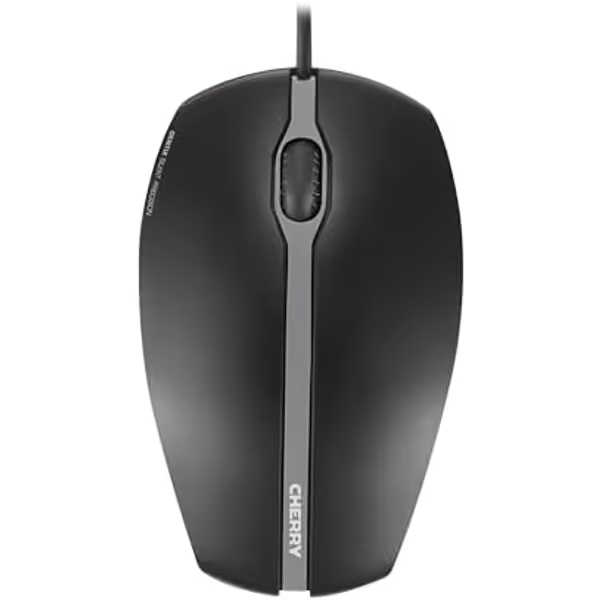
Cherry GENTIX Silent Corded Mouse
Quiet, ergonomic mouse for all-day comfort and precise control.
DPI Resolution1000 dpi
DPI Resolution1000 dpi
Pros
Silent clicking for quiet environments
Ambidextrous design fits all hand sizes
Cons
Wired connection may limit movement
That makes it a plausible low-noise mouse for Zoom calls, shared desks, and late-night work where the repetitive snap of conventional buttons becomes part of the room's soundscape. Quiet clicking is not merely an etiquette feature: it removes one recurring distraction from conversations and concentration.
But make the distinction carefully: silent switches confirm the design intent; they do not establish a measured noise level. No dBA figure or direct acoustic comparison is available for this mouse, so it cannot responsibly be called the quietest option on the market.
A useful way to assess office-friendly mouse acoustics is to remember that buttons are not the only possible sound source. Mouse feet and the wheel mechanism can also contribute noise. If silence is your non-negotiable requirement, test the whole interaction (clicking, scrolling, and moving the mouse across your actual desk or pad) during the return window.
Quiet is a workflow outcome, not a label. Evaluate the sounds you make most often.
2. Comfort: sensible symmetry, but no guarantee of an all-day fit
CHERRY's mouse measures 112 × 68 × 35 mm and has a tapered, symmetrical form. The company says that form can suit both small and large hands and can be used right- or left-handed. Its rubber-coated side sections and coated upper surface are also intended to improve grip and hand feel.
Those design choices make the GENTIX SILENT more flexible than a highly sculpted right-hand mouse. Yet "suitable for everyone" is never the same as "comfortable for you." There is no independent all-day comfort assessment available for this model, and comfort depends on more than hand length; compare different ergonomic mouse comfort approaches before assuming a symmetrical shape will fit. Grip style, shoulder position, desk height, pointer sensitivity, and how hard you squeeze when concentrating all play a role.
Use this quick fit screen before buying:
- Palm grip: Check whether the 35 mm height gives your palm enough support without forcing the wrist upward.
- Claw grip: Notice whether you can rest your fingertips naturally on the main buttons without curling them tightly.
- Fingertip grip: Confirm that the 112 mm body does not require you to reach or pinch to control the cursor.
- Left-hand use: The symmetrical body is promising, but verify whether you are comfortable with the wheel and button spacing in your own hand.
The goal is not to hold a mouse perfectly still. It is to make relaxed, repeatable movements without bracing your fingers or wrist. A mouse that feels fine for ten minutes can still be wrong for a six-hour spreadsheet session.

3. Control layout: clear and simple, not workflow-rich
The GENTIX SILENT has three keys: left click, right click, and a clickable scroll wheel. It has no thumb buttons and no DPI switch.
For basic office navigation, this restraint can be beneficial. There are no extra controls to mis-hit, no secondary layer to memorize, and no need to build a complex shortcut plan just to use the mouse. On a reception desk, shared workstation, or standard administrative setup, that simplicity can reduce setup and training overhead.
For power users, however, the limitation is immediate. Without thumb buttons, you cannot put Back/Forward, push-to-talk, paste-special, task switching, or a CAD modifier under your thumb on the mouse itself. Without a DPI switch, you cannot change pointer sensitivity from the hardware when moving between detailed work and broad navigation.
This is where I use a simple system-mapping test:
| Work pattern | What the GENTIX SILENT provides | Practical result |
|---|---|---|
| Email, documents, web forms | Left/right click and wheel click | Direct, uncomplicated navigation |
| Shared office or calls | Silent primary switches | Less intrusive clicking than a conventional clicky mouse |
| Browser-heavy research | No thumb buttons | Keyboard shortcuts remain important for Back/Forward |
| Spreadsheets and dashboards | Standard wheel and three buttons | Basic scrolling, but no dedicated horizontal-scroll control is documented |
| Design, CAD, editing, coding | No thumb buttons or DPI switch | Better served by a more programmable input setup |
| Multi-machine desk | Wired USB-A, one connection | Requires physical reconnection or another switching method; no device toggle is documented |
Map intent to buttons; your mouse becomes muscle memory. On this model, the available map is deliberately small. That is ideal only when your workflow is small enough to match it.
4. Wired connection: predictable at the desk, not mobile by design
The GENTIX SILENT connects through USB-A and has a 180 cm cable. For a stationary office setup, the cable removes several common variables: there is no battery to monitor, no wireless sleep behavior to diagnose, and no device-pairing routine before you can begin work.
The 1.8 m length also gives practical routing room for a desktop tower placed below or beside the desk. Run it behind the display stand or through a cable channel so that the cable exits toward the mouse from the most natural direction. The objective is a clear travel path, not an impressive cable-management photo.
The trade-off is equally clear, especially when comparing wired and wireless mouse connectivity. This is not the best mouse for office users who regularly jump from laptop to desktop, travel between rooms, or expect a single control to switch among devices. It is also not a wireless recommendation: the available product profile is wired only.
If you are building a mixed-device environment, resist the temptation to create two unrelated shortcut habits. I have worked through the daily juggle of a design tablet, macOS shortcuts, and Windows CAD hotkeys. The fix was not adding more random controls; it was establishing one schema everywhere. This particular mouse can play a role at one fixed station, but its documented hardware does not offer multi-device switching or a programmable thumb cluster to mirror a deeper cross-platform scheme.
5. Cursor control: adequate for conventional office navigation
The mouse's optical sensor has a maximum resolution of 1,000 dpi. That is a single, fixed reference point in the documented specification because there is no DPI switch.
For normal pointer work, the more useful question is whether your operating-system pointer speed lets you cross your display without overreaching. Start with a moderate system setting, then spend an ordinary work block editing text, selecting spreadsheet cells, and moving between windows. If you repeatedly lift and reset the mouse to reach screen edges, increase pointer speed slightly. If you overshoot buttons or struggle to select small targets, lower it.
Avoid inventing a precision story from the DPI number alone. Independent testing for tracking accuracy, polling stability, latency, surface behavior, or detailed-work performance is not available here. The evidence supports a basic office sensor specification, not a verdict for gaming, high-precision creative work, glossy desks, or every surface.
Setup Guide: Make a Simple Mouse Feel Intentional
A basic mouse can still support a calm, efficient workstation when the rest of the system is arranged properly.
Step 1: Put it in the right kind of setup
Use the GENTIX SILENT at a fixed desk with an available USB-A port and a Windows version covered by CHERRY's listed compatibility: Windows XP, Windows Vista, or higher. Compatibility with macOS, ChromeOS, Linux, and mobile operating systems is not established by the available documentation, so do not assume it for a work-critical machine.
Step 2: Route the cable before judging comfort
Leave enough slack for full left-to-right movement, but not so much that the cable drags, catches on a notebook, or loops under your forearm. A cable snag can make an otherwise comfortable shape feel inconsistent.
Step 3: Set pointer speed for your display
Work at your regular resolution and adjust the operating-system pointer speed gradually. Keep the setting steady for a few days before deciding whether the mouse feels inaccurate; changing settings constantly makes adaptation harder to judge.
Step 4: Preserve your keyboard shortcuts
Because the mouse has no thumb buttons, give commonly repeated commands a consistent keyboard home. Browser Back/Forward, task switching, and app-specific actions should remain on shortcuts you can use without looking down. This keeps the pointer hand relaxed instead of asking it to perform controls the hardware does not have.
Step 5: Test the full sound profile in context
Click, scroll, and move the mouse while on a call or in the quietest part of your workday. The right result is not absolute silence; it is an input device that stops competing with the people and work around you.
Buying Decision: Is This the Best Mouse for Office Work for You?
The honest answer is conditional. The CHERRY GENTIX SILENT is not established as the overall best mouse for office use, because this is not a multi-model test for a universal ranking. It is, however, a clearly defined option for a specific buyer: someone who values silent-button operation, a wired USB-A desk connection, a symmetrical form, and a minimal three-button layout.
Choose it when your priority stack looks like this:
- Quiet primary clicking comes before shortcut customization.
- You work mainly at one Windows desk.
- You prefer a symmetrical mouse rather than a pronounced right-hand shape.
- You want basic navigation without charging or wireless management.
Continue exploring other mouse categories if these needs are central:
- Dedicated shortcuts: Look for a model with well-placed thumb buttons, then assign actions by intent rather than by application.
- Multiple computers: Look for a model with an explicit, reliable device-switching method.
- Software-independent portability: Favor hardware controls that remain useful without a driver.
- Specialized precision or surface demands: Seek product-specific measured evidence rather than assuming that any office mouse will behave identically everywhere.
Final Takeaway: Buy for the Friction You Actually Have
The CHERRY GENTIX SILENT is best understood as a quiet, wired, symmetrical office mouse (not as a blanket winner for every user). Its strongest documented case is a stable, uncomplicated workstation where silent switches matter and three controls are enough. Its limits are equally concrete: no thumb buttons, no DPI switch, no documented multi-device feature set, and no evidence-based basis to promise all-day comfort for every hand.
That clarity is useful. Start by naming the one friction you want the mouse to remove (click noise, cable-free mobility, shortcut overload, or poor hand fit). Then choose the hardware that solves that problem without adding another one. The right mouse should make the next action feel obvious, until the device fades into the background and the work remains.
Related Articles