
SpaceMouse vs MX Master: 3D Mouse Controller Comparison for CAD
By Sofia Alvarez • 23rd Aug
Quick verdict
The SpaceMouse Enterprise is the clear choice for dedicated 3D view navigation, while the MX Master 4 is better as one versatile mouse for CAD and general productivity. The MX Master 3S Bluetooth Edition is the Bluetooth-only generalist option; at the prices shown on the retrieved Logitech US-store pages, it cost less than the MX Master 4.
- Choose the SpaceMouse if: You spend substantial time positioning 3D models and want documented 6DoF input.
- Choose the MX Master if: You need one mouse for CAD, documents, browsing, scrolling, and configurable shortcuts. Its 8,000 DPI sensor and software controls do not provide 6DoF navigation.
- Main trade-off: SpaceMouse offers specialized navigation and 31 programmable keys but adds cost, desk space, and setup.
Important: There is no independent CAD benchmark proving that either option is universally faster, more precise, or better value.
A useful 3D mouse controller comparison starts by rejecting the idea that these are substitutes in the same narrow sense. In a SpaceMouse vs regular mouse decision, the SpaceMouse Enterprise is a dedicated 3D-navigation controller with a 6-degrees-of-freedom (6DoF) sensor; the MX Master 4 and MX Master 3S Bluetooth Edition are conventional productivity mice with cursor tracking, scrolling, and configurable shortcuts. For CAD, that difference matters more than DPI, finish, or launch-day hype. For a broader look at hardware designed around CAD workflows, see our best mice for CAD work.
The practical question is not "which is better"? It is: Do you need dedicated 3D view manipulation, or do you need one capable mouse for CAD selection plus the rest of your workday? Value is a spec, and the right answer depends on how much of your time is spent moving models versus selecting geometry, entering commands, reviewing documents, and switching between applications.
The short verdict
Choose 3Dconnexion SpaceMouse Enterprise if you want documented 6DoF input plus 31 programmable keys and per-application command assignment through 3DxWare 10.
Choose Logitech MX Master 4 if you want one mouse with scrolling and configurable shortcuts for general productivity. It offers an 8,000 DPI sensor, MagSpeed scrolling, an on-screen Actions Ring, and customizable haptic feedback. None of those features creates 6DoF navigation, but they can reduce shortcut friction in a mixed workflow.
Pay for performance, not paint, packaging, or promises.
The MX Master 3S Bluetooth Edition is the Bluetooth-only Logitech option here. Its displayed price was lower than the MX Master 4’s when the Logitech US-store pages were retrieved, but store prices and availability can change. It preserves the 8,000 DPI sensor and Logi Options+ customization, but its documented preset list does not establish CAD-specific integration.
What you are actually comparing
SpaceMouse Enterprise: a dedicated 3D-navigation tool
The SpaceMouse Enterprise uses a 6DoF sensor. In plain terms, it is designed for manipulating a 3D view through its controller cap rather than only moving a 2D cursor across the screen. 3Dconnexion says gentle cap movements translate into smooth, intuitive 3D navigation; treat that as the company's product claim, not a universal speed or precision result.
Its control density is substantial: 31 programmable keys. The listed controls include 12 Intelligent Function Keys, eight keyboard modifiers, five QuickView keys, three CustomView keys, Rotation Toggle, Key Menu, and Fit. With 3DxWare 10, commands can be assigned by application or environment.
That makes the Enterprise compelling for users who can clearly name the view and command actions they repeat all day. It is also physically a desk-resident device: 249 × 154 × 58 mm and 800 g. That footprint and weight may be welcome stability in a fixed workstation, but they are not travel-friendly conveniences.
MX Master 4: a versatile pointer with workflow controls
The Logitech MX Master 4 remains a conventional mouse: it tracks a cursor with an 8,000 DPI sensor that Logitech says works on virtually any surface, including glass at least 4 mm thick. It adds an on-screen, customizable Actions Ring at the cursor, customizable Haptic Sense Panel feedback, and a MagSpeed wheel with ratchet and hyper-fast modes. Logitech says the wheel can scroll 1,000 lines per second.
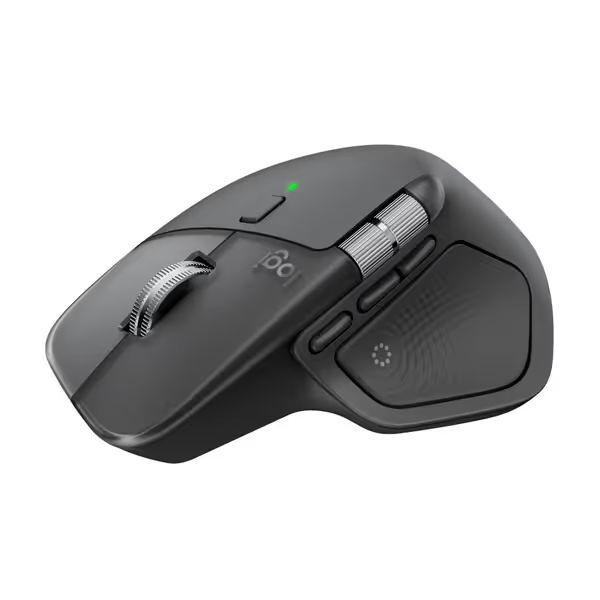
Logitech MX Master 4 Ergonomic Wireless Mouse
Haptic feedback and ultra-fast scrolling for enhanced ergonomic productivity.
$119.99
DPI8K Any-surface Tracking
DPI8K Any-surface Tracking
Pros
Haptic feedback and customizable Actions Ring boost productivity.
MagSpeed wheel scrolls 1,000 lines/sec, precise to a pixel.
Cons
DPI may feel slow for some high-resolution displays.
Customers praise customizable buttons and improved ergonomics after personalization, though some find default DPI slow and prefer USB dongle performance.
Customers praise customizable buttons and improved ergonomics after personalization, though some find default DPI slow and prefer USB dongle performance.
Those are meaningful conveniences for a CAD professional who also lives in drawings, spreadsheets, browsers, project-management tools, and review meetings. The key limitation is straightforward: an 8,000 DPI sensor controls pointer movement; it does not provide six-axis model navigation. If cursor consistency is also important to your workflow, our guide to mouse accuracy metrics explains how tracking precision, jitter, and lift-off distance affect real-world control. Do not buy the MX Master 4 expecting it to reproduce the SpaceMouse controller cap.
Logitech reports up to 33% time savings from Actions Ring shortcuts in an internal 2025 Ergo Lab study of 37 MX Master users across eight desktop actions. That result may be useful as a reason to explore your own shortcut setup, but it is not an independent CAD benchmark, and Logitech notes outcomes vary with the shortcuts assigned.
Orbit and pan control methods: the workflow difference
For CAD navigation devices, the input method determines the workflow more than the button count.
With the SpaceMouse Enterprise, the controller cap is the center of the interaction. 3Dconnexion positions it as a way to control 3D navigation, while the hardware keys handle view-related functions, modifiers, and application commands.
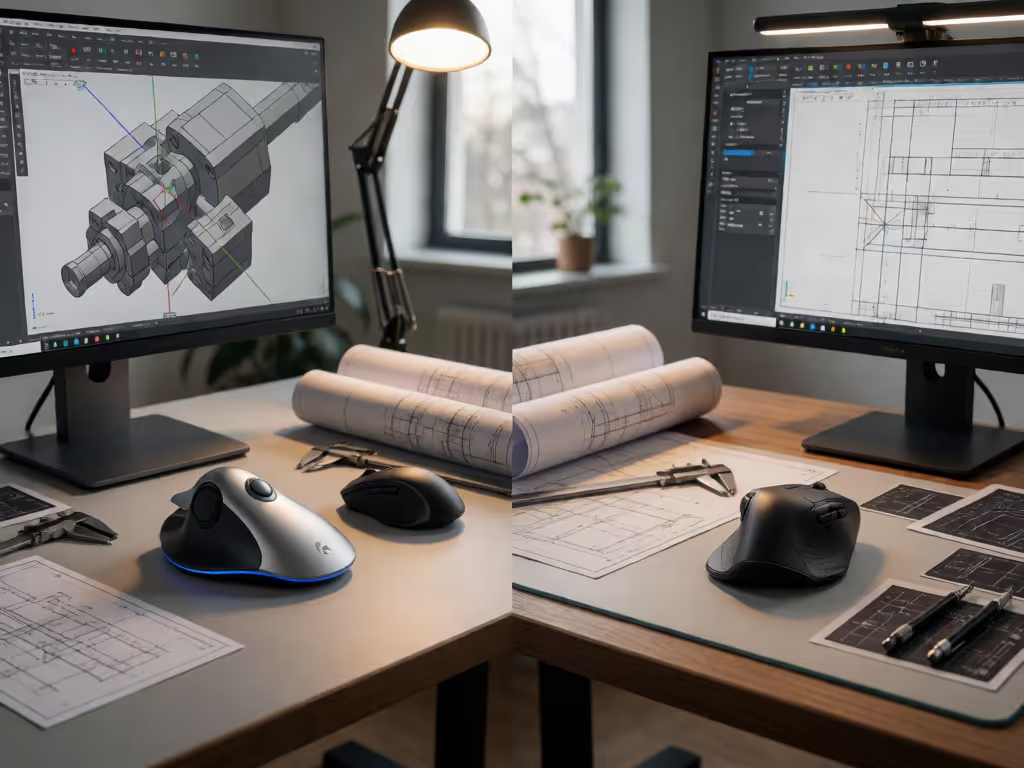
3Dconnexion describes a two-handed arrangement for its separate Enterprise Kit 2: a CadMouse Pro Wireless in the right hand and a SpaceMouse Enterprise used to position objects and views with the left hand. The standalone Enterprise does not include that mouse. If you want that arrangement, account for separate pointing hardware.
The MX Master 4 combines cursor tracking, scrolling, haptic feedback, and customizable shortcut access in one mouse. Its Actions Ring provides an on-screen shortcut overlay at the cursor, while the MagSpeed wheel offers ratchet and hyper-fast modes. That keeps its workflow focused on conventional mouse input and software customization rather than a dedicated 6DoF controller.
The distinction is especially important when comparing orbit and pan control methods. A SpaceMouse is purpose-built for 3D view control; an MX Master's value comes from pointer control and shortcut access. Calling one an "upgrade" over the other hides the real trade-off.
Controls and customization: depth versus consolidation
SpaceMouse Enterprise: extensive hardware command access
If you regularly invoke view presets, modifiers, fit commands, and application-specific commands, the Enterprise provides 31 programmable keys for those assignments. The best case is a stable, repeatable CAD environment where you are willing to invest time assigning controls through 3DxWare 10.
That setup work is not free. A dense controller only earns its desk space when the assignments match your actual modeling, assembly, or review habits. Before buying, write down ten actions you repeat every session. If you cannot identify those actions, the Enterprise may be more controller than your workflow can monetize.
MX Master wins on lower-friction generalist use
The MX Master 4's Actions Ring is an on-screen shortcut overlay at the cursor, and its haptic feedback can be assigned to particular actions, shortcuts, and notifications. Logitech requires Logi Options+ on Windows or macOS for those customization features and third-party plugins.
This is a different philosophy: fewer hardware controls, more context-sensitive software access. For practical instructions on remapping buttons, gestures, and profiles, see our mouse customization guide. It can make sense when CAD is only one component of a broader professional day. It is less persuasive if your priority is dedicated, tactile controls for view manipulation and CAD commands.
There is no verified evidence here of a model-specific CAD profile for MX Master 4. Set expectations accordingly: it is customizable, not documented as a native 3D-controller alternative.
The budget case: MX Master 4 versus MX Master 3S Bluetooth Edition
When the Logitech US-store pages were retrieved, the MX Master 4 displayed a price of $119.99. The MX Master 3S Bluetooth Edition displayed a discounted price of $89.99, with $99.99 also shown on its page. Store prices and availability can change. This exact 3S configuration is Bluetooth-only.
The 3S Bluetooth Edition has an 8,000 DPI optical sensor that Logitech says can track on glass at least 4 mm thick, adjustable sensitivity through Logi Options+, and button/track-speed customization. Logitech also lists predefined customizations for applications including Adobe Photoshop, Premiere Pro, Final Cut Pro, Chrome, Safari, Zoom, Microsoft Teams, Word, Excel, PowerPoint, and Edge. That list does not include a CAD-specific preset.

Logitech MX Master 3S Bluetooth Mouse
Ergonomic, precise, and quiet for all-day workflow mastery.
$79.99
DPI8000
DPI8000
Pros
Ergonomic design reduces strain and enhances comfort.
Tracks on any surface, even glass, with 8K DPI sensor.
Cons
No USB receiver included (Bluetooth only).
Customers find this mouse to be a great work tool with a comfortable grip, smooth scrolling, and fantastic battery life that can go weeks without charging. They appreciate its customizable features, with many buttons and gestures that can be programmed. The functionality and scrolling speed receive mixed reviews - while some say it functions well, others report issues with the scroll wheel stopping working. The value for money is also mixed, with some finding it worth the price while others consider it expensive.
Customers find this mouse to be a great work tool with a comfortable grip, smooth scrolling, and fantastic battery life that can go weeks without charging. They appreciate its customizable features, with many buttons and gestures that can be programmed. The functionality and scrolling speed receive mixed reviews - while some say it functions well, others report issues with the scroll wheel stopping working. The value for money is also mixed, with some finding it worth the price while others consider it expensive.
The 3S also has Quiet Clicks; Logitech says left- and right-click noise is 90% lower than on the MX Master 3 under its stated sound-power comparison. It is a sensible choice for users who want a quieter productivity mouse and prefer this Bluetooth-only configuration.
Plain verdict: if you are choosing between these two Logitech models solely for CAD view control, neither replaces the SpaceMouse's documented 6DoF input. If you are deciding among Logitech models beyond this comparison, see our MX Master 3 vs 3S comparison for the practical differences across the lineup. If you are choosing a general mouse that will also serve CAD sessions, compare current prices before deciding. Spend more on MX Master 4 only if the Actions Ring and haptic features are features you will actively configure and use.
Ergonomics and reliability: keep the claims in proportion
3D input ergonomics is not a one-number specification. Hand size, desk height, chair position, existing discomfort, keyboard reach, and the amount of grip tension you apply all matter.
3Dconnexion describes the Enterprise Kit 2 as pairing a SpaceMouse Enterprise for positioning objects and views with a CadMouse Pro Wireless. Some users may value that distribution of tasks. Others may find a second device, a second hand position, and more software configuration counterproductive. There is no independent CAD-task testing in the available evidence that proves it is faster or more accurate for every user.
For durability, I care more about warranty clarity and support behavior than premium materials language. When the terms were retrieved, 3Dconnexion listed a three-year limited hardware warranty for the SpaceMouse Enterprise, plus one additional year through qualifying registration within 90 days of purchase. Warranty terms are regional and can change, so read the current terms before you buy.
That checkpoint matters. I have seen a premium mouse develop double-click trouble within three months while support simply stalled. The eventual midrange replacement had clearer switch expectations and a cleaner warranty path, and its cost-per-month math looked much better after a year of travel. Price is paid once; friction keeps charging you.
Is a SpaceMouse worth it for CAD?
It can be, but only under specific conditions.
A SpaceMouse Enterprise is easier to justify when you:
- Spend a large, consistent share of the week navigating 3D models.
- Want documented 6DoF input and can map repeated commands to its 31 programmable keys.
- Work primarily at a fixed desk with room for a controller measuring 249 mm long and 154 mm wide.
- Value the warranty coverage documented when checked and will verify the current registration terms before buying.
If you want the two-handed arrangement that 3Dconnexion describes for Enterprise Kit 2, remember that the standalone SpaceMouse Enterprise does not include the CadMouse Pro Wireless.
An MX Master is the more rational purchase when you:
- Need one device for CAD, documents, web work, meetings, and general office tasks.
- Prefer cursor shortcuts, programmable buttons, scrolling, and portability over dedicated 6DoF input.
- Want to keep the desk and setup process simple.
- Cannot yet identify enough repeated 3D-navigation work to justify a second controller.
Do not force a same-price comparison. When checked, the SpaceMouse Enterprise regional page displayed 2,977.00 kr, while the Logitech US-store pages displayed US-dollar prices. Displayed prices can change, and no consistent same-region, same-date pricing is available, so calculating a direct ROI from those figures would be false precision.
Final verdict
The clearest answer in this 3Dconnexion SpaceMouse vs MX Master comparison is that the products solve different bottlenecks.
Buy the SpaceMouse Enterprise when CAD navigation itself is the bottleneck. Its documented 6DoF sensor, 31 programmable keys, and per-application command assignment make it the specialized option. Confirm your CAD application's current support. If you want the Enterprise Kit 2-style two-handed arrangement, ensure you have room for separate pointing hardware.
Buy the MX Master 4 when your actual need is a premium all-round productivity mouse with strong shortcut and scrolling tools. It is the better consolidation choice, not the dedicated 3D-navigation choice.
Buy the MX Master 3S Bluetooth Edition when its Bluetooth-only setup suits you, its Logi Options+ customization covers your workflow, and current pricing makes it the better-value Logitech option for you.
The winning device is the one that removes a recurring bottleneck without adding a second one. That is sustained value, not a spec-sheet victory.
Related Articles