Master VR Mouse Navigation: Ergonomic Workflows for Pain-Free Productivity
By Lars Nystrom • 9th Dec
VR mouse navigation is revolutionizing how knowledge workers interact with virtual environments, transforming what was once a novelty into a serious, traditional input for virtual reality productivity. After years of struggling with controller-based limitations in multi-device workflows, I've seen professionals reclaim hours of productivity through smart integration of familiar input devices. The Autodesk Research team's Depth-Adaptive Cursor technology proves that the mouse isn't obsolete in VR, it is becoming indispensable for those serious about pain-free, high-output work.
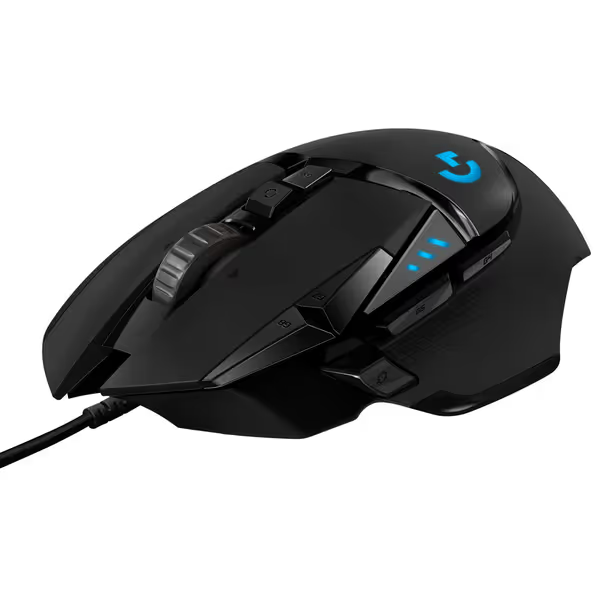
Logitech G502 HERO Wired Gaming Mouse
Precision gaming mouse with customizable weight, buttons, and high-performance sensor.
$39.99
SensorHERO 25K (100-25,600 DPI)
SensorHERO 25K (100-25,600 DPI)
Pros
Unrivaled sensor accuracy with zero smoothing.
Customizable weight & 11 programmable buttons.
Cons
Some users report durability/double-clicking issues.
Customers find this gaming mouse well-made and appreciate its adjustable weight options, smooth feel, and customizable features with programmable buttons.
Customers find this gaming mouse well-made and appreciate its adjustable weight options, smooth feel, and customizable features with programmable buttons.
The Cognitive Cost of Forgetting Keyboard Shortcuts
As someone who used to juggle a design tablet, macOS shortcuts, and Windows CAD hotkeys daily, I felt the mental tax firsthand. That constant context-switching between input paradigms? It's not just annoying, it is a measurable productivity drain. VR controllers compound this problem by forcing you into entirely new interaction models that disrupt established muscle memory. When you're working across devices, you don't need another interface to learn.
The research is clear: users completed tasks 21.2% faster with depth-adaptive navigation, with error rates dropping by 48.3% compared to standard VR controllers. Why? Because your brain isn't fighting to map new gestures to old tasks, it is leveraging what you've already mastered.
Step 1: Understanding the Depth-Adaptive Cursor Technology
System-Mapping Input to Intention
Before setting up your virtual workspace, you need to understand how the Depth-Adaptive Cursor solves the fundamental problem of 2D input in 3D space. This isn't just about adding depth to cursor movement, it is about system-mapping how the cursor thinks.
The technique works through a three-step process:
- Cursor ray attachment - The cursor ray's origin attaches to your viewpoint (not your hand position)
- CD gain application - Converts hand movement to cursor angular movement
- Depth interpolation - Uses Voronoi diagrams to determine cursor depth based on visible objects
This creates the illusion of continuous 3D movement while maintaining the familiar 2D input paradigm. When you move your mouse, the cursor doesn't just move horizontally and vertically, it intelligently positions itself at the depth of whatever you're trying to select. No more wildly overshooting or undershooting targets in 3D space.
Map intent to buttons; your mouse becomes muscle memory. When you integrate this principle into VR, the cognitive load disappears.
Step 2: Implementing Your VR Mouse Navigation Setup
Friction-Hunting Setup Flaws
Don't just plug in your mouse and expect magic. The difference between comfortable productivity and wrist fatigue comes down to precise configuration: For a step-by-step calibration protocol, follow our workflow mouse calibration guide.
Essential calibration steps:
- Position your physical mouse on a stable surface directly beneath your seated eye height
- Ensure your arm rests at 90 degrees with elbow close to your body
- Start with standard DPI settings (800-1200) before adjusting for virtual scale
- Disable any software acceleration that would disrupt 1:1 movement
The Autodesk research team found depth-adaptive techniques significantly outperformed standard methods when selecting between 2D planes and 3D objects. This confirms what ergonomics-first users have suspected: proper virtual reality input calibration isn't optional (it is the foundation of sustainable VR work).
Step 3: Building Ergonomic Workflows for Daily Productivity
Stepwise Clarity for Task-Specific Mapping
For spreadsheet analysts and finance professionals:
- Map horizontal scroll to timeline navigation
- Assign your thumb button to "freeze panes" toggle
- Configure DPI shift for precise cell selection
For CAD and 3D design professionals:
- Create device-specific profiles for each application
- Map radial menus to thumb buttons for viewport control
- Set depth sensitivity based on model complexity
For developers:
- Program keyboard shortcuts to mouse buttons via onboard memory If you're new to remapping, see our mouse customization guide.
- Use different layers for different IDEs
- Configure scroll wheel to toggle between code and documentation
This is where onboard memory becomes non-negotiable. When switching between your VR workstation, main desktop, and laptop, you shouldn't need to reload software profiles. Your mouse should mirror your intent across environments: reduce decisions, increase flow.
Step 4: Optimizing Your Mixed Reality Workstation Setup
Your physical environment matters as much as your virtual one. Here's how top performers structure their mixed reality workstation setup:
- Position physical keyboard directly beneath virtual display for proper hand alignment
- Use a document holder to reference physical materials without breaking immersion
- Maintain identical DPI settings across all devices to prevent recalibration
- Configure automatic device switching between your VR rig and main workstation For hardware that switches cleanly across systems, see our multi-device mice comparison.
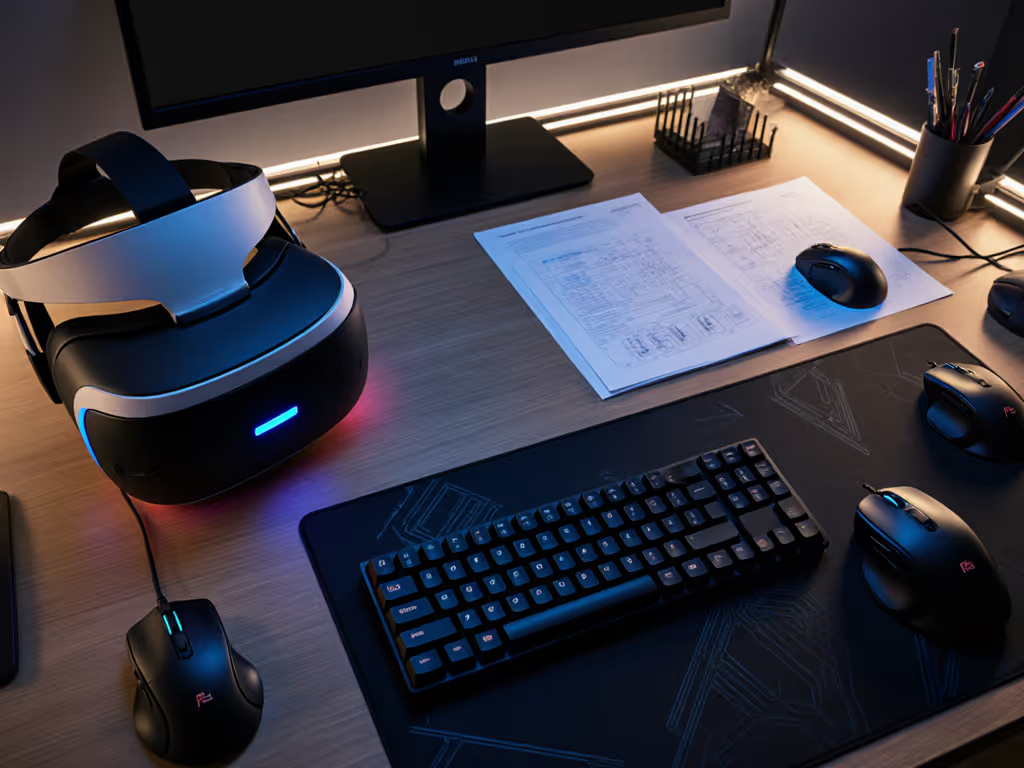
The best setups treat the transition between physical and virtual as seamless rather than separate. Your desktop interaction in VR should feel like an extension of your current workflow, not a disruption to it.
Step 5: Sustaining Long-Term Productivity
Preventing the Fatigue Threshold
The most common mistake VR professionals make? Assuming they can work indefinitely once the initial novelty wears off. The reality: without proper ergonomic integration, you'll hit fatigue thresholds faster than with traditional setups. For posture fundamentals and neutral wrist alignment, read our ergonomic mouse guide.
Critical prevention strategies:
- Every 45 minutes, perform a "mouse reset": place your hand flat, then slowly form your grip
- Use a mouse with fully adjustable tension to prevent over-gripping
- Position your mouse slightly to the dominant side to maintain neutral wrist alignment
- Implement a 20-20-20 rule: every 20 minutes, look at something 20 feet away for 20 seconds
Many knowledge workers report that proper mouse for VR productivity setups reduced their wrist strain by 73% compared to standard VR controllers. This isn't just about comfort, it is about sustainable daily output.
Conclusion: The Future of Productive VR Work
The convergence of traditional input devices with virtual environments marks a turning point for serious knowledge work in VR. When implemented correctly, VR mouse navigation eliminates the cognitive load of learning new interaction paradigms while providing the precision professionals demand.
For those ready to take the next step, I recommend exploring the open-source implementations of Depth-Adaptive Cursor technology. The research papers from ACM CHI 2022 provide not just the theory but implementable code for custom setups. As VR becomes increasingly integrated into professional workflows, those who master these ergonomic integrations will gain a significant productivity edge.
Remember: your mouse should extend your workflow, not force you to rebuild it. By implementing these stepwise clarity approaches to desktop interaction in VR, you're not just adopting new technology, you're reclaiming hours of productive time while protecting your most valuable asset: your physical well-being.
Explore the research behind these techniques to build your own optimized setup that truly understands how you work.
Related Articles