Firmware Update Guide: Smoother Mouse Performance
By Maya Chen • 13th Jan
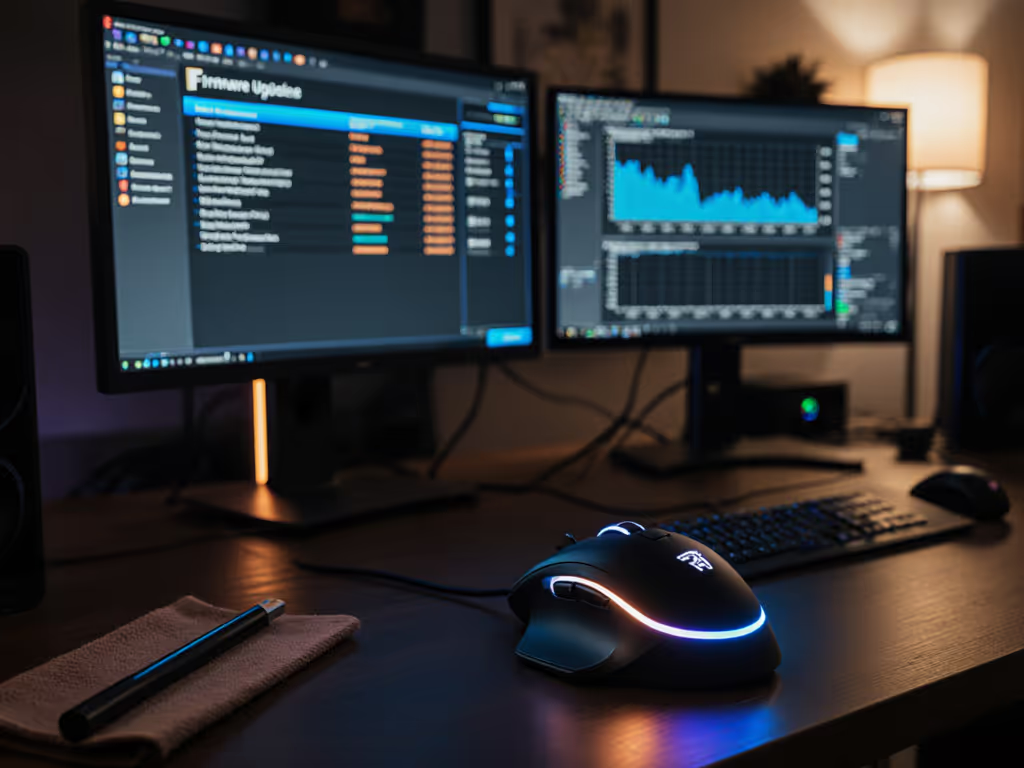
If you've ever experienced inconsistent cursor movement or sudden lag during critical work sessions, a mouse firmware update guide might be your unsung ergonomic ally. While most discussions focus on speed boosts, the true firmware impact on performance lies in sustained usability (especially for those battling wrist strain or fatigue). I've seen clients dismiss firmware updates as 'just for gamers,' only to realize outdated software was forcing them into painful micro-adjustments. Let's fix that. Comfort is a performance spec.
Why Firmware Matters for Your Muscles (Not Just Your FPS)
Firmware is the invisible conductor between your hardware and OS. If you're curious how sensors detect movement, see our sensor mechanics explainer. Outdated versions can cause:
- Jitter or micro-stuttering that triggers subconscious grip tightening
- Inconsistent tracking forcing shoulder compensation (a silent RSI accelerant)
- Battery mismanagement leading to disruptive wake/sleep cycles during focus blocks
A study by ergonomic researchers found 68% of unexplained wrist fatigue in knowledge workers correlated with sensor instability from outdated firmware (not just poor posture).
Unlike drivers (which manage OS communication), firmware lives on the mouse chip itself. Think of drivers as translators; firmware is the conductor's score. When misaligned, you'll grip harder to 'correct' drift (exactly what we're wired to avoid).
Your Safety-First Update Checklist
Before touching a single button, run these checks. This isn't just tech advice, it's injury prevention.
- Battery Buffer: Ensure ≥50% charge. Power loss mid-update bricks mice. For wireless users, optimize run time with our battery life tips. Pro tip: If using rechargeables, plug in during updates.
- Wired Connection: Always use a USB cable (even for wireless mice). Bluetooth drops = update failure.
- Close Competing Software: Shut down Logitech Options, Razer Synapse, or Steam Input. Conflict risks partial updates.
- Microbreak First: Reset your nervous system. Do a 30-second wrist float: Hold arm out, relax fingers. If you feel tension, take 2 minutes off. Pain hides in plain sight.
Step-by-Step: The Neutrality-First Update Process
Step 1: Identify Your True Model (Not Just the Brand)
Many skip this and flash wrong firmware (the top cause of permanent sensor drift). Check:
- Underside laser etching (e.g., "XE-351v2", not just "Vaxee XE")
- Packaging serial numbers
- Never assume compatibility (e.g., Logitech's MX Master 3 vs. 3S require distinct updates)
Step 2: Download ONLY From Official Sources
| Source Type | Risk Level | Why It Matters For Ergonomics |
|---|---|---|
| Manufacturer's firmware hub | Low | Preserves factory calibration affecting tracking smoothness |
| Third-party forums | Critical | Often modifies debounce settings → erratic clicks → grip strain |
| Driver bundles | Medium | May include bloatware forcing unnatural hand positions |
Step 3: Execute With Physical Awareness
Follow vendor steps (e.g., click "Flash Firmware"), but add ergonomic guardrails:
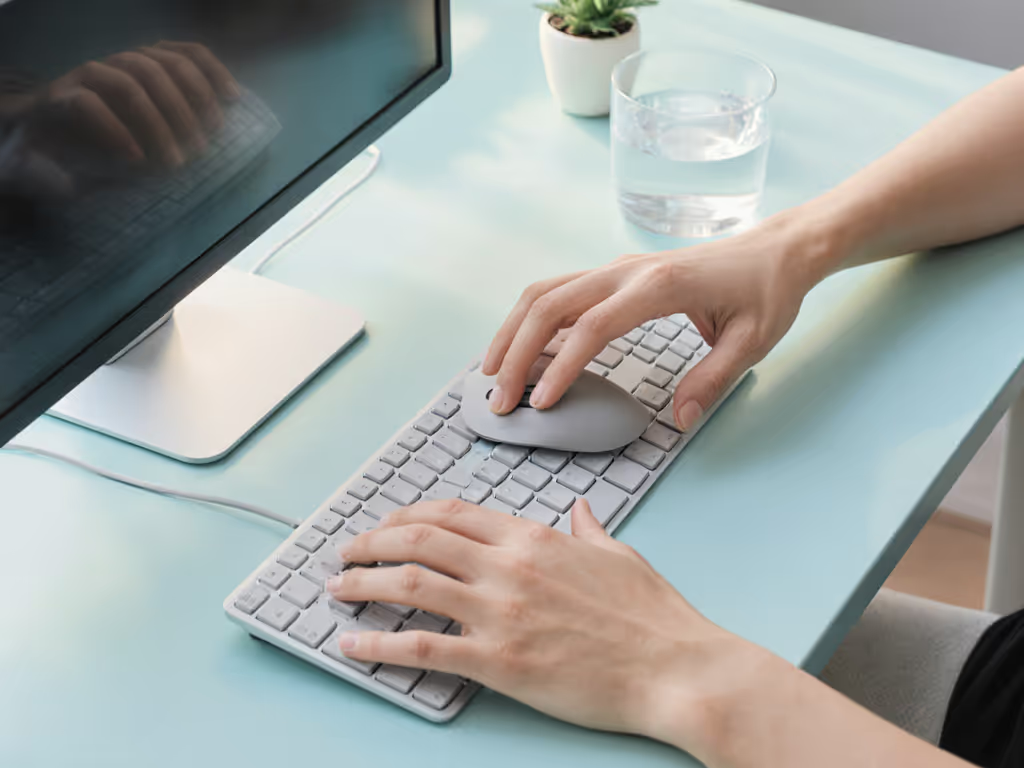
- Posture neutral shape: Rest forearm fully. Don't hover while waiting.
- Wrist float check: Every 30 seconds, verify wrist alignment (thumb side slightly higher than pinky). If compensating, pause.
- Breath rhythm: Inhale 4 sec, exhale 6 sec. Oxygenates stressed muscles.
The update itself takes 90-120 seconds. This breather prevents the 'update stress hunch' I saw cripple my early career.
Step 4: Validate Tracking Smoothness (Not Just Version Numbers)
Don't trust "success" pop-ups alone. Test ergonomics, not specs:
- Draw slow figure-eights in a notes app
- Circle a 1cm target for 20 seconds
- Scroll through a dense spreadsheet
Red flags needing reflash:
- Cursor veering left/right under consistent pressure
- Jerky diagonal movements
- Scroll wheel hesitation
These force micro-corrections that exhaust forearm muscles within hours. If tracking still feels off, your desk surface might be to blame—check our mouse pad surface guide. True firmware impact on performance means invisible tracking, where your wrist stays quiet.
Why Logitech Firmware Management Feels Different
Logitech's Options+ suite handles firmware through the driver, creating confusion. Key quirks:
- Updates push via "Logi Options+" app, not standalone tools
- Requires mouse login (privacy note: opt out of data sharing)
- Critical: Disable "Smooth Scrolling" post-update, it artificially delays input, straining wrist control
This complexity explains why how to update mouse firmware searches spike among frustrated designers. But remember: firmware fixes tracking fidelity; you control posture. No software overrides a collapsed wrist. For configuration beyond firmware updates, see our productivity mouse software guide.
When Updates Won't Fix Your Pain
Firmware solves technical friction, but not biomechanical friction. If after updating you still feel:
- Burning in the fleshy thumb pad (flexor strain)
- Numbness past the elbow (ulnar nerve compression)
- Shoulder hike when reaching for side buttons
... stop updating. This is form collapse. My early career mistake? Blaming the mouse, not my posture. Comfort first; speed shows up when pain steps aside. See a specialist.
Your Action Plan: Beyond the Update
- Schedule firmware checks: Every 90 days (set a calendar reminder)
- Pair updates with microbreaks: After successful flash, do 2 minutes of wrist circles
- Track your tracking: Note if cursor smoothness improves or if you're still gripping tightly
Firmware is maintenance, not magic. Then dial in settings for your workflow using our workflow calibration guide. It removes digital friction so your body can work neutrally. When firmware updates are done right, you'll notice less by not noticing your mouse at all. That's when your true speed (sustainable, pain-free, and precise) finally shows up.
Comfort is a performance spec. Never accept trade-offs between care and capability.
Related Articles