Chromebook Mouse Compatibility Guide For Lag-Free Use
By Amara Okoye • 2nd Sep

What to do
To use a mouse with a Chromebook, first confirm the available connection path and, for USB devices, avoid models that require extra drivers. Bluetooth pairing is supported on Chromebooks with Bluetooth; USB mice can work when recognized directly by ChromeOS.
- Start with: Check for Bluetooth in the lower-right time menu, or verify the Chromebook’s available USB ports and the mouse’s connection requirements.
- Then: Pair a discoverable Bluetooth mouse through “+ Pair new device,” or connect a USB mouse directly rather than through a hub when troubleshooting.
- Important prerequisite: Compatibility does not guarantee lag-free performance, and no evidence shows that Bluetooth or USB receivers are inherently faster.
Important: If the mouse is not recognized, update ChromeOS, reconnect or restart the device, toggle Bluetooth when relevant, and consider a hard or hardware reset.
Chromebook mouse compatibility is simpler when you separate a confirmed connection path from unproven performance assumptions. A ChromeOS compatible mouse can be a Bluetooth mouse paired through ChromeOS or a USB mouse that the Chromebook recognizes without extra driver installation, but no evidence supports a promise that every wireless mouse will work on every Chromebook, or that one wireless method is automatically more lag-free than another.
The practical goal is to establish a stable, repeatable connection first. Then evaluate the mouse in your own work or play rather than treating a port type, wireless label, or marketing claim as a performance verdict.
Measure first; the right shape changes everything that follows.
That principle matters after connectivity is solved. For this guide, though, the measurement-led question is narrower: Does your Chromebook expose the connection method your mouse needs, and does a USB mouse operate without additional drivers?
Does a Chromebook support a mouse?
Yes, within the supported paths documented here. Google's material states that a Chromebook with Bluetooth can connect to devices such as mice. ASUS Chromebook support guidance also lists mice among external accessories a Chromebook can connect to.
That does not turn "mouse support" into a universal guarantee. Compatibility depends on the specific Chromebook, the mouse's connection method, and whether it depends on software or drivers ChromeOS does not provide.
The useful compatibility split
Use this quick decision tree before purchasing or troubleshooting:
- Bluetooth mouse: Check that Bluetooth is available on the Chromebook, then pair the mouse through ChromeOS.
- USB mouse: A USB mouse must work without installing additional drivers. Chromebook USB support guidance specifically cautions that USB devices requiring driver installation are not supported.
- Compatibility or certification language: Treat these as distinct terms. Google's mouse specification defines minimum requirements for compatibility and additional mandatory requirements for certification.
This avoids a common category mistake: a product may use a familiar connector or be sold as wireless without that alone proving Chromebook support.
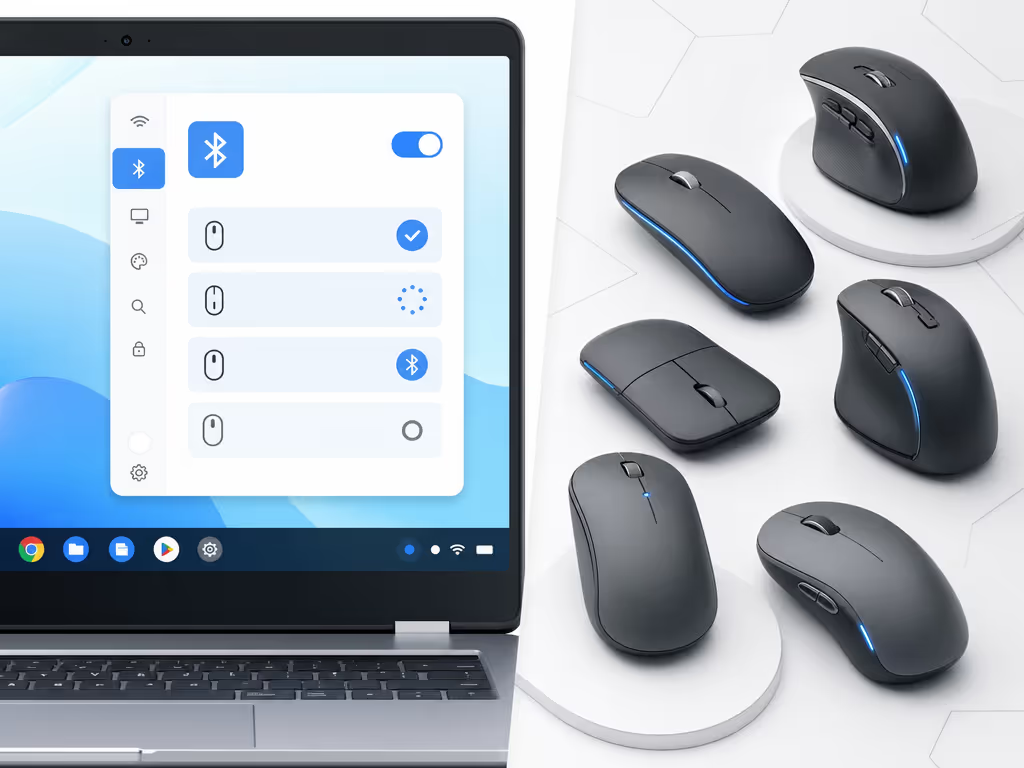
How do I tell whether my Chromebook can use a Bluetooth mouse?
Start with the Chromebook, not the mouse box. Select the time in the lower-right corner of the screen and look for the Bluetooth control. Its presence is the practical check that the Chromebook has Bluetooth available.
If Bluetooth is available, a Chromebook Bluetooth mouse is an established option. Google's guidance covers pairing a mouse manually through the Bluetooth menu.
Repeatable Bluetooth pairing protocol
- Select the time in the lower-right corner of ChromeOS.
- Select Bluetooth and turn it on.
- Put the mouse in pairing mode. The exact method varies, so use the mouse maker's instructions.
- Confirm that the mouse has Bluetooth enabled and is discoverable.
- Choose + Pair new device.
- Select the mouse when it appears, then follow the on-screen instructions.
Once paired, non-audio Bluetooth devices, including mice, are expected to reconnect automatically when they are turned on and near the Chromebook.
What if the mouse does not appear in the pairing list?
Do not infer a single cause from that symptom. The documented checks are straightforward:
- Verify Bluetooth is on in ChromeOS.
- Verify the mouse is in its own pairing mode and discoverable.
- Check for and install ChromeOS system updates.
- Toggle Bluetooth off and back on.
- Restart the Chromebook.
- If needed, perform a hard reset.
These steps are troubleshooting actions, not proof that the problem is Bluetooth latency, the mouse hardware, or the Chromebook itself.
What does "ChromeOS compatible" actually mean for a mouse?
Within Google's mouse specification, compatibility and certification are not interchangeable.
The specification sets minimum requirements for a mouse to be compatible with ChromeOS. It also lists additional mandatory requirements for certification. That distinction is valuable when comparing listings: language that merely says "compatible" should not be read as equivalent to a certified product.
The document applies to mice only; it excludes trackpads and trackballs. So do not use a mouse-specific compatibility statement to draw conclusions about those other pointing-device categories.
What certification requirements reveal and what they do not
A few requirements show why details matter:
- A battery-powered mouse seeking certification must report battery level through the standard HID General Purpose Battery Strength report.
- A rechargeable mouse seeking certification must support recharging via USB-C.
- If a mouse uses a custom kernel driver, that driver has specific upstreaming and Chromium OS kernel requirements.
These are product-development and certification criteria, not a setup checklist for an owner. In particular, the USB-C charging requirement for a rechargeable certified mouse says nothing about the connector used by a wireless receiver.
Some retailers use the "Works With Chromebook" designation for accessories. CTL describes those accessories, including mice, as tested and certified to meet Google ChromeOS compatibility requirements. Because that description comes from a retailer, use it as a useful purchasing signal rather than as a substitute for checking the mouse's stated compatibility details.
Can I use a USB mouse with a Chromebook?
A USB mouse is a reasonable path to test, but keep the claim precise: ASUS Chromebook support guidance includes mice among connectable accessories and says Chromebooks do not support USB devices that require installing additional drivers.
For a Chromebook USB-C mouse search, do not assume the words identify a confirmed receiver standard or a performance advantage. This guide does not compare USB-A and USB-C receivers, and it does not establish which receiver type will work with a given Chromebook port. Check the physical ports on the Chromebook and the mouse's own connection requirements before buying.
USB connection troubleshooting: remove variables in order
If a USB-connected mouse is not recognized or becomes unstable, follow a short isolation sequence:
- Disconnect and reconnect the mouse.
- If it is connected through a hub, connect it directly to the Chromebook's USB port.
- Restart the Chromebook.
- Update ChromeOS.
- Perform a hardware reset if the issue remains.
ASUS specifically recommends direct connection when a hub is involved; if the mouse works directly, the hub or available power may be implicated. That is a useful test result, not a universal diagnosis.
Which connection is best for lag-free use: Bluetooth or a USB receiver?
This is where good buying advice needs a boundary. Documented guidance confirms Bluetooth pairing on Bluetooth-capable Chromebooks and provides limited USB connection troubleshooting. It does not compare Bluetooth with proprietary 2.4 GHz USB receivers, establish latency rankings, or identify the cause of lag or micro-stutter on ChromeOS.
So the defensible answer is: choose the connection method your Chromebook and mouse explicitly support, establish a reliable connection, and avoid treating the transport label as a latency guarantee. For background on how polling rate affects perceived mouse performance, see this mouse polling rate guide.
If pointer behavior feels delayed or inconsistent, first identify whether you have a connection failure, such as an unpaired Bluetooth device or a USB device not recognized through a hub, before assigning a cause. The supported troubleshooting steps above are the appropriate first pass. Firmware-update expectations and receiver-specific tuning tools cannot be assumed to be available on ChromeOS.
FAQ
Will any wireless mouse work with Chromebook?
No universal claim is supported. A Bluetooth mouse can connect when the Chromebook has Bluetooth and the mouse is enabled, discoverable, and in pairing mode. For a wireless mouse that connects over USB, confirm that it does not require installation of additional drivers. For other wireless implementations, verify the manufacturer's Chromebook or ChromeOS support information.
Why won't my Chromebook recognize my mouse?
For Bluetooth, check pairing mode, toggle Bluetooth, restart, update ChromeOS, and consider a hard reset. For USB, reconnect the device, bypass any hub by connecting directly to the Chromebook, restart, update ChromeOS, and consider a hardware reset. These steps narrow the problem but do not establish one definitive cause.
How do I enable a mouse on a Chromebook?
For a Bluetooth mouse, open the time menu in the lower-right corner, select Bluetooth, turn it on, select + Pair new device, choose the mouse, and complete the prompts. There is no documented general "enable mouse" control in the material covered here.
Build your compatibility checklist before you buy
A quick pre-purchase checklist eliminates most avoidable uncertainty:
- Connection path: Does the Chromebook show a Bluetooth control, or will you be using USB?
- Driver independence for USB: Does the USB mouse require extra driver installation? If yes, do not assume it will work on ChromeOS.
- Product language: Is the claim basic compatibility, or does it state certification?
- Physical setup: If using USB, verify the Chromebook's available ports and the mouse's stated requirements rather than guessing from "USB-C" wording.
- Troubleshooting plan: If connection is unstable, test direct USB connection or repeat the Bluetooth pairing sequence before changing several variables at once.
Compatibility is the gate; the rest of the evaluation comes afterward. Fit unlocks performance only when the mouse is consistently connected and usable in the first place. For further exploration, compare a prospective mouse's explicit ChromeOS support statement with your Chromebook's available Bluetooth or USB path, then keep the first setup test deliberately simple: one mouse, one direct connection method, and one change at a time.
Related Articles