Mouse Grip Styles Guide: Measure Your Hand for Perfect Fit
By Lars Nystrom • 17th Sep
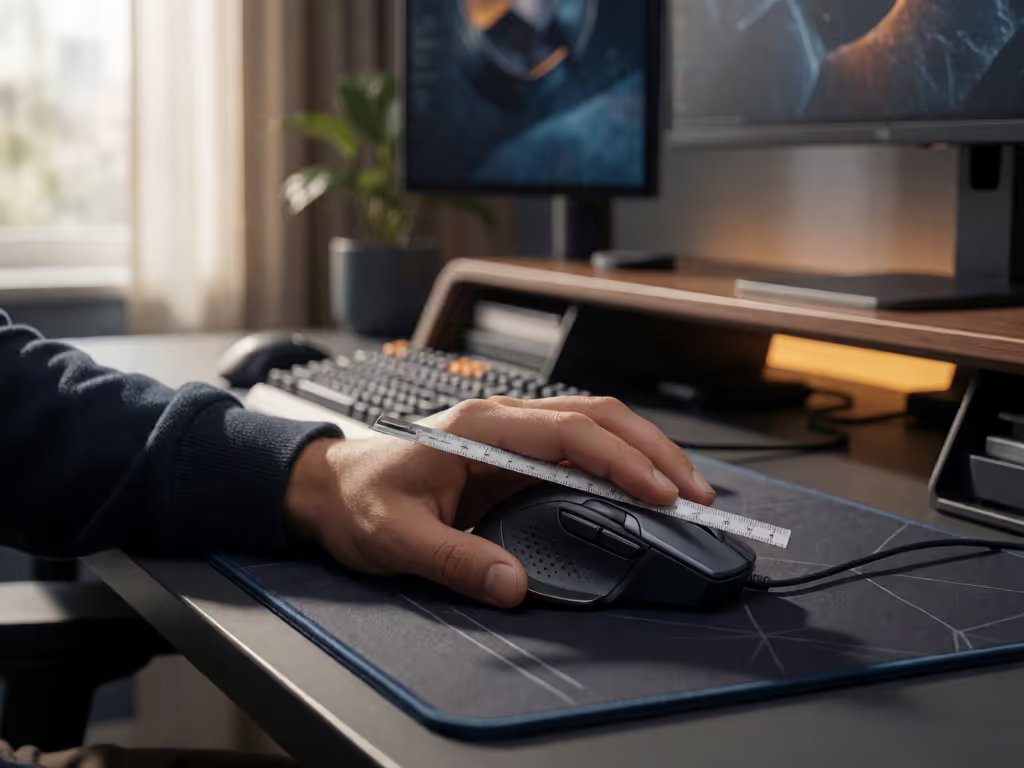
What to do
Measure your hand, identify whether your palm, claw, or fingertips contact the mouse, then compare those contact points with the mouse’s length, width, height, hump, and button layout. Confirm the choice with a relaxed grip, neutral wrist, and comfortable reach during normal tasks.
- Start with: Observe your natural contact pattern: palm and fingers, heel of the palm with curled fingertips, or fingertips only.
- Then: Measure from middle-finger tip to palm base and across the knuckles, using both results to narrow your shape shortlist.
- Important prerequisite: Try the mouse when possible. The available guidance does not provide universal hand-size cutoffs, and no grip is universally best; fit depends on sustained comfort, neutral alignment, and unstrained button reach.
This mouse grip styles guide shows how to determine mouse grip, measure your hand, and translate both into a mouse shape that feels natural over a full session, not merely comfortable for five minutes. The goal is not to force yourself into a fashionable grip or chase a universal size chart. It is to match the shell's contact points, button reach, and dimensions to the way your hand already wants to work, so you can reduce decisions, increase flow.
A good fit supports the natural curve of your hand, keeps the wrist in a neutral position, and lets you hold the mouse without squeezing. Those three checks matter whether your priority is steady aim, dense spreadsheet work, precise CAD selections, or an all-day creative workflow.
Step 1: Identify Your Natural Grip Before You Measure
Do not start by changing your hand position. Put your current mouse on the desk, perform a few ordinary tasks (clicking, scrolling, selecting, or moving between targets), and then pause. Look at what contacts the shell.
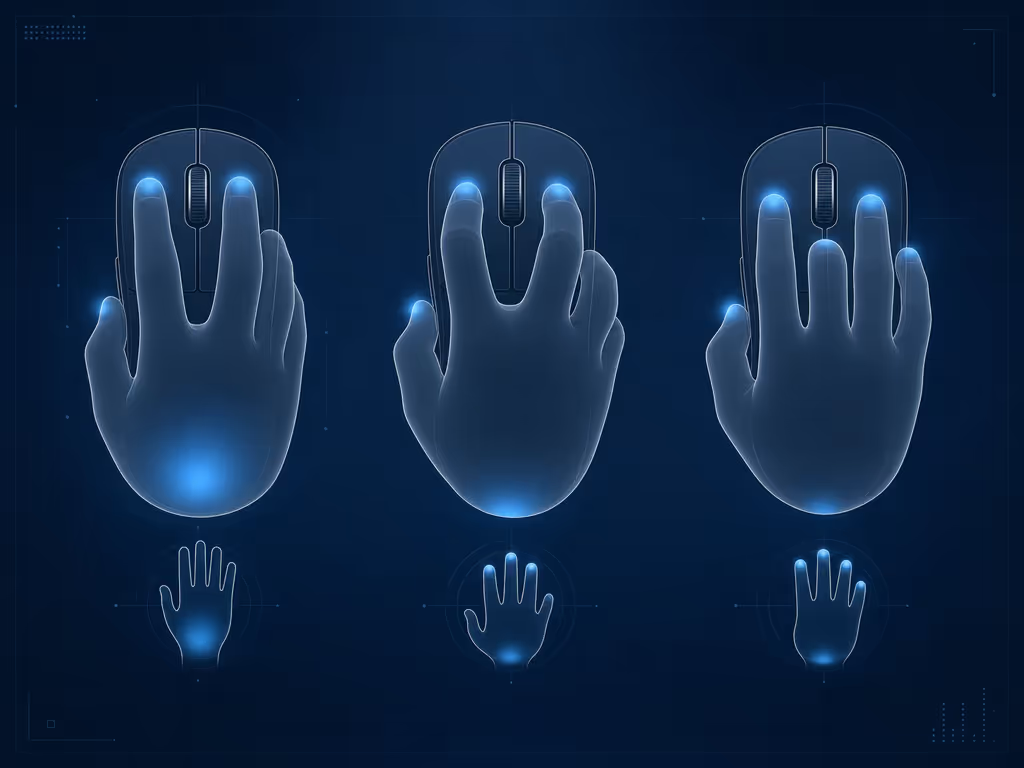
Palm grip
With a palm grip mouse posture, your palm and fingers rest on the mouse. The shell carries much of the hand's contact area. When evaluating a mouse for this grip, look for a shape that supports the full hand rather than leaving the palm hovering or forcing it into an awkward position.
Claw grip
In a claw grip mouse posture, the heel of the hand rests on the shell while the fingertips curl over the main buttons and grip the sides. A higher rear hump may help support the heel of the palm for some claw users. The keyword is may: hump placement and height are shape variables to test against your own contact point, not a numerical prescription.
Fingertip grip
With a fingertip grip mouse posture, only the fingertips contact the mouse; the palm does not rest on the shell. If this is your natural grip, examine whether a pronounced hump creates palm contact you did not ask for. If it does, the shape is interfering with your intended movement pattern.
Map intent to buttons; your mouse becomes muscle memory.
These are useful descriptions, not performance rankings; an ergonomic mouse comparison can help you see how different shapes support each style. Palm, claw, and fingertip grips can all be effective. The better choice is the one that lets your hand stay relaxed and your wrist stay neutral while you do the work or play you actually care about.
Step 2: Measure Hand Length and Width Consistently
Your measurements give you a repeatable starting point for comparison. The available guidance does not provide universal hand-size cutoffs that map every hand to every mouse shape.
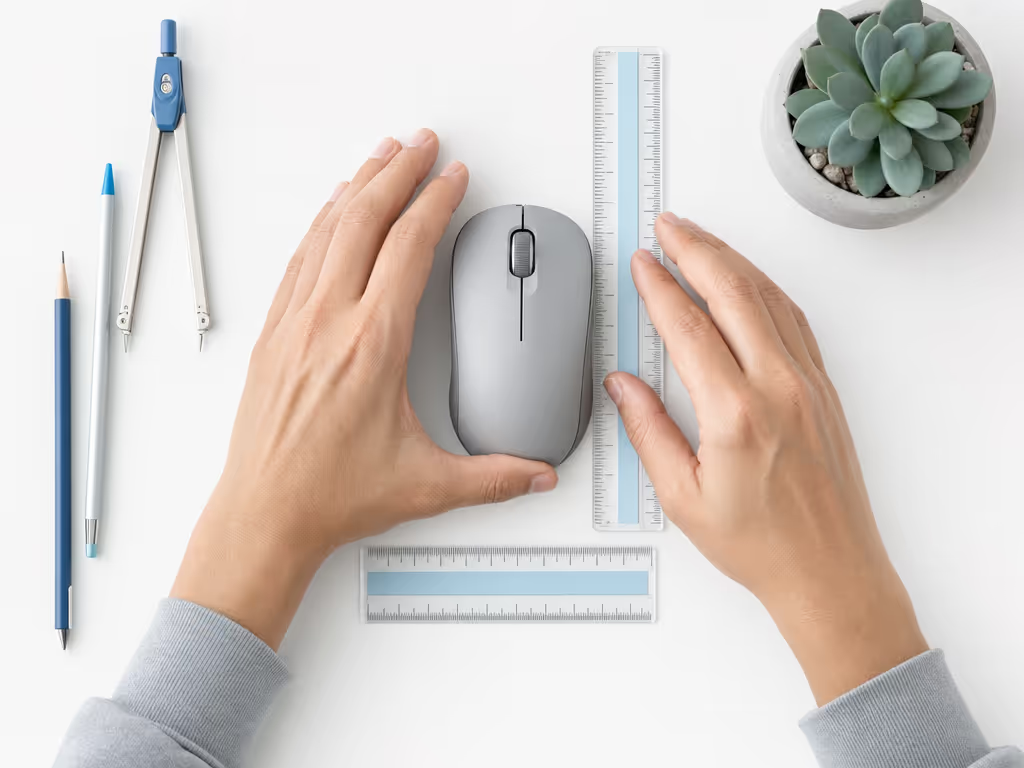
Use a ruler or measuring tape and record both measurements in the same unit.
Measure hand length
- Lay your hand flat on a table.
- Keep the fingers naturally straight, without stretching them apart.
- Measure from the tip of the middle finger to the base of the palm.
- Record the result.
Measure hand width
- Bring your fingers together.
- Measure across the hand at the knuckles, from one side to the other.
- Record the result beside your hand length.
That is the core of a practical hand size fitting guide: two stable measurements, followed by a comparison with a mouse's published length, width, and height, including options from a small-hand mouse comparison. Do not substitute a made-up formula for handling the mouse. Measurements narrow the field; they do not settle fit on their own.
Step 3: Turn Numbers Into a Shortlist of Shapes
Now compare your hand length and width with the mouse dimensions you are considering. Then assess the shell as a three-dimensional object, not a specification line.
Work through this system-mapping sequence:
- Length: Does the mouse give your palm and fingers enough room for your chosen grip, without forcing you to crowd the buttons or overextend your hand?
- Width: Can your thumb and ring/pinky fingers hold the sides without pinching, excessive spreading, or a death grip?
- Height and hump: Does the hump meet the part of your hand that naturally wants support? For claw grip, rear support can be useful. For fingertip grip, unwanted palm contact can be a reason to look lower or differently shaped.
- Button layout: Are the main and side buttons reachable without cramping your fingers or spreading them too far apart?
- Contact points: Does the mouse support the places your hand naturally lands, rather than dictating a fixed hand position?
As a starting tendency, shorter, narrower mice may suit smaller hands, while larger hands may need more length and height for support. Treat that as a direction for shopping, not a rule. Hand length and width are useful starting points, but they do not replace trying the mouse. If your hand is broad or particularly large, a large-hand mouse guide can provide more targeted shape and support comparisons.
I learned this the hard way while moving between a design tablet, macOS shortcuts, and Windows CAD hotkeys: dimensions got me close, but a sane thumb cluster and repeatable contact points were what made two systems feel like one workflow.
Step 4: Run a Five-Minute Fit Check
If you can physically try a mouse (or have a return window), use this simple test. It is more valuable than trying to predict fit from a product photo.
Check wrist alignment
Rest your forearm on the desk and place your hand on the mouse. Your forearm, wrist, and fingers should form a generally straight line, consistent with the principles in this ergonomic mouse guide. If you must bend the wrist sharply to reach the mouse or its buttons, pause. Reposition the mouse first; if the problem remains, reassess the shape.
Check grip pressure
Move the cursor through ordinary tasks for a few minutes. Notice whether you are holding the shell loosely or unconsciously squeezing the sides. A relaxed grip is the target. If you have to clamp down just to feel in control, the width, coating, button placement, or overall shape may be wrong for you.
Check button reach
Click the main buttons, scroll, and use side buttons if present. Your fingers should not cramp or stretch excessively to activate them. This is the most useful practical alternative to a supposed "fingertip reach" measurement: test the actual reach under normal hand placement.
Check movement source
Make a series of broad horizontal movements and small controlled ones. Aim to move from the elbow and forearm rather than relying only on the wrist. CCOHS notes that a larger mouse that still fits in the palm can help you rely more on larger arm muscles rather than smaller wrist muscles.
Step 5: Interpret the Mismatches, Not Just the Measurements
Use these contact, button-reach, and wrist-alignment checks to adjust the next candidate.
| What you notice | What to examine next |
|---|---|
| Palm touches a shell during fingertip use | Look at lower or differently positioned humps |
| Buttons require your fingers to cramp or spread too far apart | Compare a different button layout or shape with more usable reach |
| Wrist is not neutral during normal use | Recheck desk positioning and select for a more neutral hand-and-wrist position |
Do not overreact to a single sensation in the first minute. Instead, repeat your normal sequence: browsing, a document edit, a design selection, or a familiar game routine. Check whether the mouse supports your natural contact points without forcing your fingers or palm into a set position, and whether buttons remain reachable without cramping or over-spreading your fingers.
Step 6: Choose Between Palm and Claw Based on Fit
Is claw or palm grip better? Neither is universally better.
Choose palm when your hand naturally rests across the shell and the mouse supports that contact without forcing a bent wrist or tight grip. Choose claw when the heel of your hand naturally anchors on the rear while your fingertips comfortably curl onto the buttons. If either posture creates tension over time, change the shape before trying to train your hand into compliance.
The same principle applies to fingertip grip: all grip styles can be effective, and no single grip is universally correct. Choose the shape that leaves the palm free when that is your natural contact pattern.
Step 7: Keep a One-Line Fit Record
Before you buy (or while comparing options), write a short record:
- Hand length and width
- Natural grip: palm, claw, or fingertip
- Desired support: full palm, heel of palm, or no palm contact
- Any reach constraint: main buttons, side buttons, or scroll wheel
- End-of-session result: relaxed, neutral, or tense
This turns vague impressions into useful selection criteria. It also helps when you use multiple machines: preserve the same button logic and primary contact pattern where possible, even if the operating systems differ. Less remapping means less mental drag.
Continue Your Fit Exploration
The best mouse grip style is the one that fits your hand, supports its natural curve, preserves neutral wrist positioning, and stays comfortable through your real workload. Measure first, identify contact points second, then test dimensions, hump shape, and button reach as a connected system.
For your next comparison, ignore generic size labels. Put your own two measurements and one natural grip style at the top of the list, then judge every candidate by whether it lets you work with a loose grip and a straight wrist. That is the shortest path to a mouse that mirrors intent rather than demanding constant correction.
FAQ
What are the possible disadvantages of claw grip?
Claw grip can place the fingers in a curled position that some people find uncomfortable during long sessions. It is not an inevitable problem, but it is a useful fit signal: if your fingers feel cramped, examine button reach, mouse width, and whether the rear hump supports the heel of your palm without pushing your hand forward.
Related Articles