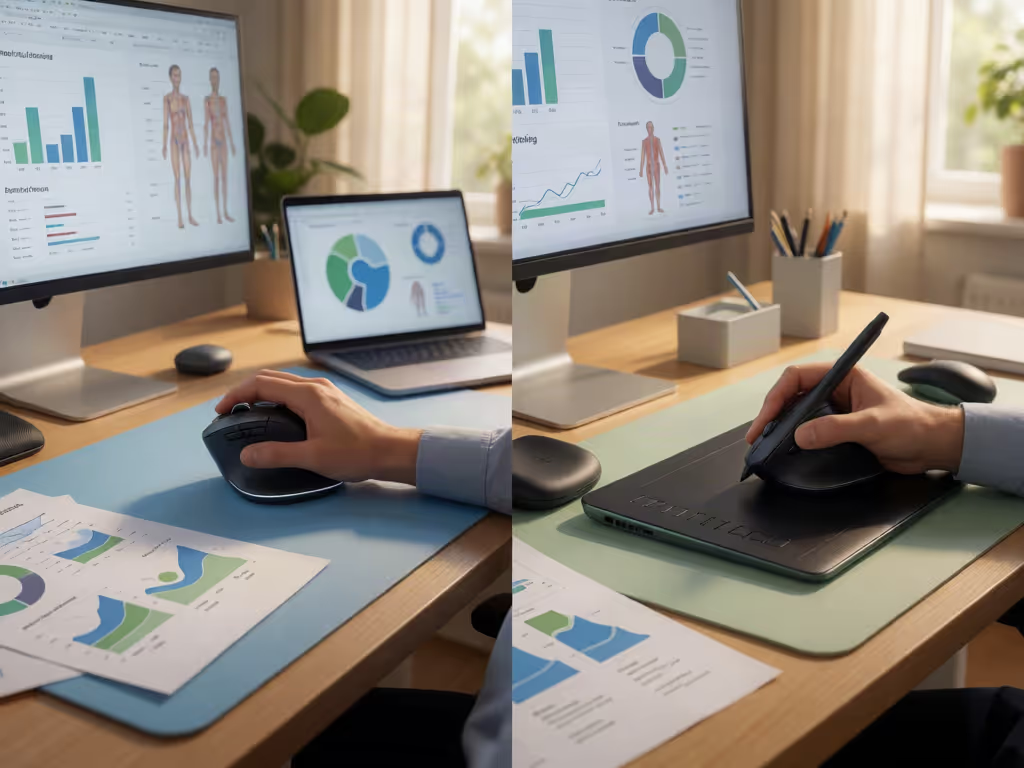
Non-Dominant Hand Mouse Training for Pain-Free Switching
By Maya Chen • 15th Aug

What to do
Yes—non-dominant-hand mouse skill can be trained, but the evidence supports improved clicking ability, not proven RSI prevention or injury treatment. Start with a neutral setup, practice gently, and measure accuracy and discomfort before speed.
- Start with: Place the mouse within easy reach, keep your wrist straight and upper arm close, and use sensitivity that permits a light touch.
- Then: Use one gentle 15-minute session five days per week. Begin with navigation and clicking, then add controlled dragging and predictable work tasks over six weeks.
- Important prerequisite: Treat the study schedule as a training example, not a medical prescription. Stop if discomfort rises; symptoms that impair ordinary activity warrant healthcare evaluation.
Important: The supporting study involved only 11 right-handed participants and measured a clicking task, so its timeline and results may not transfer to every workflow or to left-handed users.
Non-dominant-hand mouse training improved clicking performance in one small study, but the goal is not to force equal performance overnight, or to treat pain by pushing through it. This ambidextrous mouse usage guide focuses on a safer, measurable target: build usable cursor skill in the other hand while keeping your wrist, forearm, and shoulder in a low-effort position. Comfort first; speed shows up when pain steps aside.
The research case for skill learning is encouraging but narrow. In one small study of 11 right-handed mouse users, participants practiced with their non-dominant hand for 15 minutes a day, five days a week, over six weeks. Their clicking-task scores improved by an average of 31%. That is a useful proof that the skill can be trained. The study did not assess whether switching hands prevents repetitive strain injury (RSI) or improves recovery from an existing injury, and its timeline cannot be assumed for every workflow.
Start with the right expectation
Alternate hand mousing is best treated as capacity planning for your workday. You are learning a second input option so one hand does not have to perform every click, drag, and scroll. It is not a substitute for correcting a poor desk setup, reducing an aggravating activity, or getting medical care for significant symptoms. For the underlying posture and RSI principles, see this ergonomic mouse guide.
A useful performance benchmark from that study: participants were estimated to reach their initial dominant-hand clicking performance in a mean of 13.55 days, with a wide confidence interval of 6.7 to 20.4 days. The task was clicking, not gaming aim, CAD selection, spreadsheet work, video editing, or writing. Expect real work to feel awkward longer, especially where precision dragging and side-button habits matter.
Neutral first, then speed.
This order matters. Years ago, I worked in a low, narrow mouse shell that had my wrist burning by lunch. The turning point was not a clever grip trick; it was tracing my hand, checking span and contact points, then moving to a taller, gently angled shape that stopped my shoulder from doing extra work. Your second-hand setup deserves that same fit check.
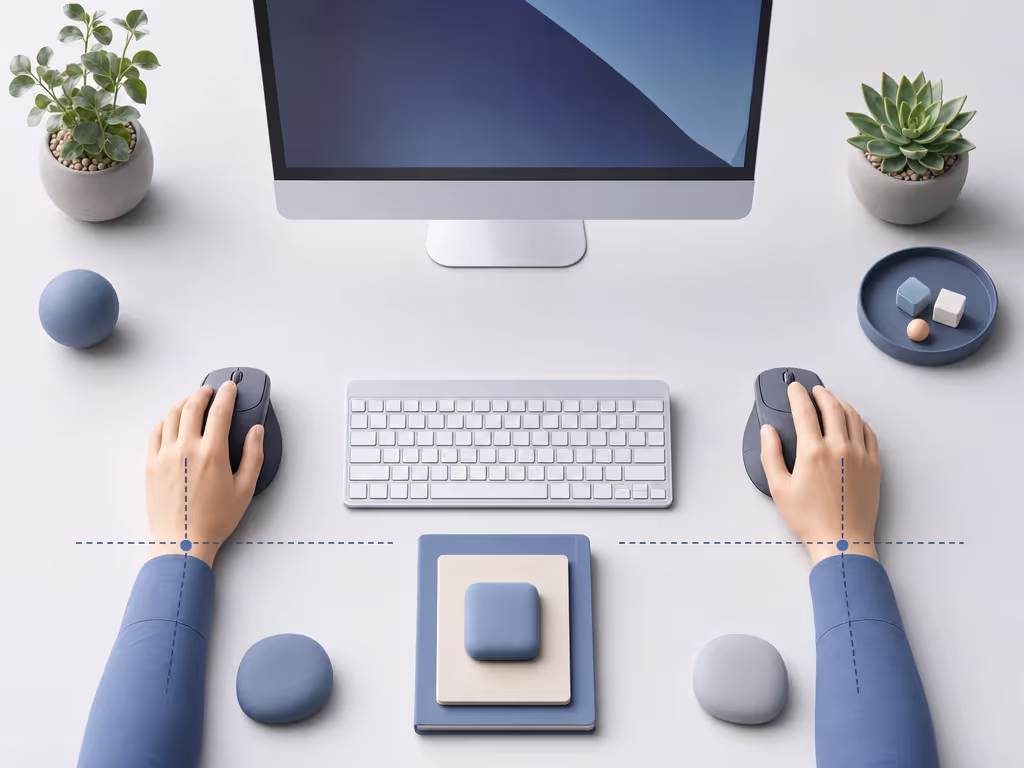
Set up both sides before you train
A new hand cannot compensate for a bad reach. Build the left- or right-side station so the movement starts from a relaxed upper body rather than a bent wrist.
The neutral-position checklist
Before each practice session, check the following:
- Keep the mouse within easy reach and on the same surface as the keyboard. Do not make the switching hand reach across a keyboard or pile of papers.
- Keep the wrist straight rather than bent toward the thumb, little finger, palm, or back of the hand.
- Keep upper arms close to your body. If the elbow flares out to reach the mouse, move the mouse closer.
- Set hand height at or slightly below elbow level.
- Use light pointer control. Set sensitivity so you can move the cursor with a light touch rather than a hard, repeated shove across the desk.
- Release the grip between actions. A mouse should rest against the hand; it should not be squeezed into submission.
For laptop users, the same principle applies: make space for the alternate mouse side rather than balancing the mouse at the edge of a crowded surface. For gaming, retain your usual sensitivity for the dominant side and change only one variable at a time on the alternate side. Consistent settings make practice results easier to interpret. If you need to adjust button functions or sensitivity across operating systems, use this mouse customization guide.
Choose a shape that does not create a new problem
Symmetrical mouse shape selection is one practical option when you plan to use one mouse with either hand. One mouse manufacturer describes ambidextrous mice as symmetrical from left to right and says a symmetrical shell works for both hands. That does not mean every symmetrical mouse will fit every hand.
Use this fit screen before committing:
- Palm contact: Can each hand rest on the shell without the wrist folding sideways or the fingertips being forced into a cramped curl?
- Button reach: Can you press the main buttons without stretching the index finger or shifting your hand forward each time?
- Side controls: Are side buttons absent, duplicated, or placed so they will not be accidental presses when used with the other hand? If not, do not build core shortcuts around them during training.
- Surface stability: Does the mouse glide without you clenching to control it? A sticky surface or unstable desk setup can turn a simple task into excess hand tension.
- Switching friction: Can you move the mouse and clear workspace from one side to the other in seconds? If switching requires cable rerouting or desk rearrangement, you will skip it on busy days.
Mouse shape still needs a hands-on fit check, so compare options in this left-handed mouse comparison. Do not try to "make it work" with an extreme grip. A shape that asks you to twist, hover, or pinch is not neutral simply because it is familiar.
A six-week mouse skill training protocol
The most defensible mouse skill training protocol mirrors the schedule used in the small mouse-training study: 15 minutes per day, five days per week, for six weeks. Think of it as a structured experiment, not a medical prescription. If discomfort rises during practice, stop; reduce the task demand and review your setup rather than training through pain.
Weeks 1-2: Make ordinary navigation calm
Use the alternate hand for low-consequence actions:
- Move the pointer between large targets.
- Single-click familiar controls.
- Scroll short pages.
- Open and close non-urgent windows.
The metric is not speed. Track completion without visible tension: relaxed shoulder, straight wrist, light grip, and fewer corrective movements. Accuracy comes before pace.
Weeks 3-4: Add controlled precision
Introduce tasks that need a little more cursor control:
- Select text in short passages.
- Drag files between nearby folders.
- Resize a window.
- Click small interface controls at a deliberate pace.
If a task creates repeated misses, increase target size or slow down the task rather than tightening your grip. You are teaching controlled motion, not rehearsing frustration.
Weeks 5-6: Use it in real workflow windows
Choose predictable blocks: email triage, reading documents, browser research, or project housekeeping. Avoid making the alternate hand responsible for a competitive match, a deadline-sensitive edit, or high-stakes production change until it is dependable.
Record three numbers after each session:
- Minutes completed
- Tasks completed accurately
- Discomfort rating before and after, using a simple 0–10 scale
This is more useful than chasing a vague feeling of improvement. In the study, non-dominant clicking improved, and dominant-hand clicking also improved by an average of 13%, a pattern the researchers described as bilateral transfer. It is interesting evidence that practice may carry over between hands in that specific task; it is not a guarantee of universal performance gains.
Build switching into the day without overusing either hand
Hand switching has not been established as an RSI-prevention outcome. If you choose to switch hands, posture and total task load still matter.
Use a simple decision rule:
- Use the alternate hand for planned, lower-pressure task blocks.
- Return to the dominant hand when accuracy demands are genuinely high.
- Get up and walk around as often as possible; while seated, occasionally stretch your hands, fingers, and arms.
- Reassess the setup whenever you notice shoulder hiking, wrist bend, or a need to grip harder.
The small study also found that after more than a year without training, non-dominant performance declined but remained above pre-training levels and was rapidly relearned. In practical terms, a brief maintenance session may be more realistic than expecting the skill to stay polished without use.
Do not turn training into symptom management
Pain, swelling, tingling, numbness, stiffness, weakness, and sensitivity to temperature can occur with repetitive strain injuries, though symptoms alone do not diagnose a condition. If symptoms make ordinary activities or work difficult, seek evaluation from a healthcare provider. Readers dealing with ongoing wrist discomfort can also review these mice for wrist pain while discussing appropriate options with a healthcare professional. For extreme pain, worsening swelling, discoloration, or an inability to move a body part normally, seek emergency assessment.
If you already have a diagnosed condition, recent surgery, or persistent symptoms, do not use non-dominant hand mouse training as rehabilitation unless a qualified clinician or occupational/physical therapist has advised it. The safety-first move is to modify or reduce the activity that is provoking symptoms, not to double the amount of mouse work.
Your next step: run a seven-day baseline
For the next five workdays, set up the alternate mouse side using the checklist and complete one gentle 15-minute session each day. Log accuracy, tension, and symptoms; do not score yourself on speed yet. At the end of the week, adjust mouse placement or sensitivity if you needed to reach, bend your wrist, or grip hard.
That baseline tells you whether the system is ready for skill practice. Build from a neutral shape and a calm hand, then let the faster cursor paths arrive on their own.
Related Articles