
PC Trackball Mouse Comparison for Comfort and Productivity
By Maya Chen • 25th Sep
Quick verdict
The best PC trackball depends on your control style and workflow, not a universal comfort or productivity ranking. Choose among simple ambidextrous finger control, ambidextrous finger control with a 55 mm ball, wireless index-finger control with eight programmable buttons, or thumb-driven navigation.
- Choose the Orbit or Expert Mouse if: You want wired, ambidextrous finger control with a scroll ring. The Orbit keeps controls simple with two customizable buttons; the Expert Mouse adds a 55 mm ball and four.
- Choose the ELECOM Huge or M570 if: You prefer wireless operation. The Huge favors index-finger control and eight programmable buttons; the M570 favors thumb control with Back and Forward buttons.
- Main trade-off: More buttons and wireless freedom do not prove better comfort or productivity.
Important: No independent testing here establishes universal comfort, precision, strain reduction, or productivity outcomes.
A PC mouse trackball offers a control layout that differs from a conventional mouse, but it is not one single ergonomic experience. The important differences are which finger moves the ball, how much your hand is supported, whether the layout works for either hand, and whether the controls match the repetitive tasks you actually do. For daily office work, the best productivity mouse is the one you can operate with a relaxed hand and predictable shortcuts, not simply the one with the longest feature list.
This comparison focuses on four distinct approaches: the ambidextrous, finger-operated Kensington Orbit with a 40 mm ball; the ambidextrous, finger-operated Kensington Expert Mouse with a 55 mm ball; the ELECOM Huge with index-finger control and eight programmable buttons; and the thumb-operated Logitech M570. I'm deliberately not calling any of them a universal cure for pain or a universal "best." Fit, symptoms, workload, and setup still matter.
The problem: a mouse can make your hand work harder than the task
When a pointing device is wrong for you, the clues usually arrive before a full workday is over: a tight thumb, a wrist that keeps bending toward the little-finger side, forearm tension, or a shoulder that hikes up while you make fine cursor corrections. A device can feel novel and pleasant for ten minutes yet ask too much from one joint after four hours of spreadsheets, timelines, code, or browser tabs. For a deeper look at ergonomic mouse principles, consider how posture and repetitive movement affect comfort over a full workday.
Trackballs offer distinct control styles rather than one automatic comfort advantage. A thumb-driven design puts cursor control at the thumb; a finger-operated design distributes that motion differently. Button count affects workflow, but only if you can reach and press those buttons without squeezing.
That distinction is worth taking seriously. Early in my design career, a low, narrow shell had my wrist burning by lunch; tracing my hand and noting where it contacted the device made the compensation pattern obvious. A taller, gently angled alternative changed both the tension and the messy cursor paths that came with it.
Why trackball shopping gets frustrating
The usual comparison traps are easy to spot:
- "Ergonomic" is treated as a result rather than a shape description. The available product evidence does not establish that these trackballs prevent or resolve repetitive-strain problems for every person.
- Ball diameter gets treated as a score. A 40 mm, 52 mm, or 55 mm ball describes the hardware, not whether your particular fingers will prefer it.
- More buttons are assumed to mean more productivity. Extra commands help only when they replace frequent actions and remain easy to reach.
- Wireless is treated as either inherently better or inherently unreliable. The useful question is simpler: do you need the freedom of a receiver-based setup, or the direct simplicity of a cable?
- Compatibility gets overlooked. Software-driven remapping and operating-system support deserve a check before the return window becomes your test bench.
For this group, the productive comparison begins with control style, then narrows by connection and command needs. That order keeps the shopping list grounded in how you actually move.
The solution: choose the movement pattern before the feature count
1. Kensington Orbit: the simple ambidextrous finger trackball
The Kensington Orbit Trackball with Scroll Ring is a finger-operated, ambidextrous wired USB-A trackball with a 40 mm ball, a surrounding scroll ring, and two buttons that KensingtonWorks software can customize. It includes a detachable wrist rest, and Kensington describes it as compatible with PC and Mac.
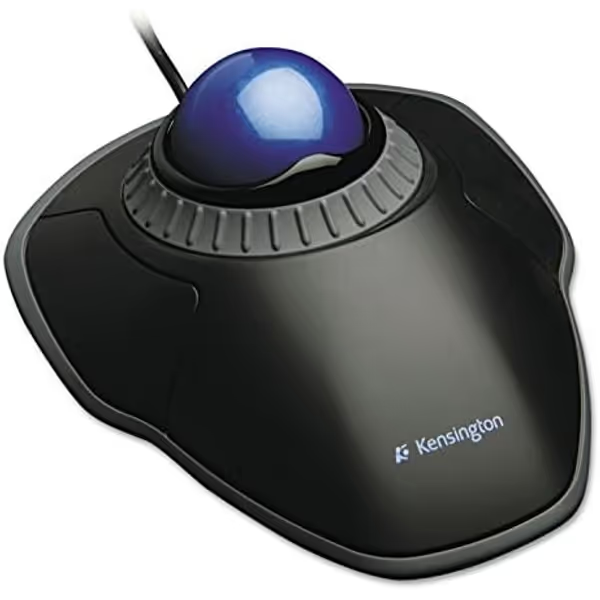
Kensington Orbit TrackBall Mouse
Ergonomic trackball with scroll ring for comfortable, precise navigation.
Tracking TechnologyOptical (40mm ball)
Tracking TechnologyOptical (40mm ball)
Pros
Reduces hand/wrist strain with ergonomic trackball and wrist rest.
Precise scroll ring for effortless document and web navigation.
Cons
Wired connection limits mobility.
This is the cleanest option in the comparison for a shared workstation, a left-handed user, or anyone who wants a low-complexity PC mouse trackball. Its control proposition is narrow but coherent: use your fingers for cursor movement, spin the ring for vertical navigation, and keep commands limited to two customizable buttons.
That is a strength when your work is mostly reading, reviewing, selecting, and scrolling through documents. It is a limitation when your workflow depends on many shortcuts. Two programmable buttons cannot offer the command depth of an eight-button layout; that is not a defect, just a decision boundary. If you use the supplied wrist rest, check that it supports the heel of your palm without forcing your wrist upward. A rest should meet the hand, not become a ledge you press into.
2. Kensington Expert Mouse: larger ball, four-button flexibility
The Kensington Expert Mouse Wired Trackball keeps the ambidextrous, finger-operated concept but uses a 55 mm ball, scroll ring, four buttons customizable through KensingtonWorks, detachable wrist rest, and wired USB-A connection. Its documented compatibility list includes Chrome OS 44 or above, macOS 10.8 through 10.13 or above, and Windows 7 through 11; operating-system support can change, so confirm current requirements before purchase.
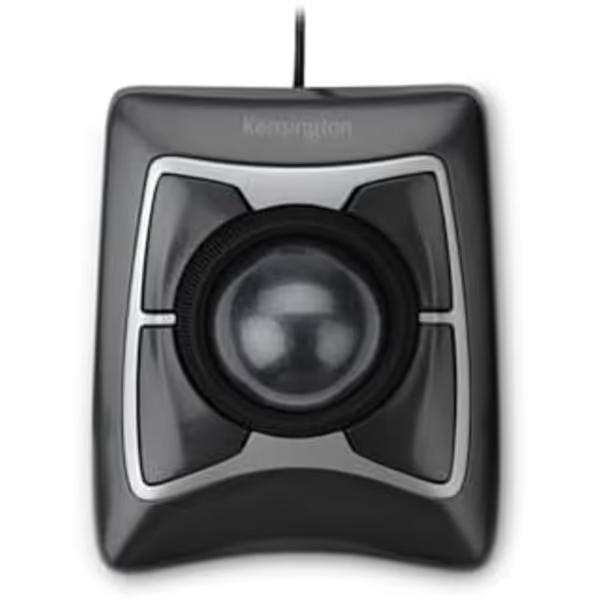
ACCO/Kensington Expert Mouse Optical Trackball
Precise trackball control with ergonomic comfort for reduced strain.
Tracking TechnologyDiamond Eye Optical
Tracking TechnologyDiamond Eye Optical
Pros
Reduces wrist/arm strain with fixed position.
Precise cursor control with large trackball.
Cons
Trackball may require adaptation for new users.
For daily work, the Expert Mouse is the stronger candidate when you want the left/right-hand flexibility of an ambidextrous unit but need more mappable actions than the Orbit provides. Four buttons give you room to assign high-frequency commands - perhaps Back, Forward, a modifier, or an application command - without assuming that four is inherently "enough" for everyone.
The larger ball is a form-factor distinction, not proof of better precision or comfort. Test the reach mentally: can your index and middle fingers roll a large central sphere while your palm stays settled, rather than hovering and tensing? If you share a desk, its ambidextrous design is practical. If your task calls for a dense stack of shortcuts, move to the ELECOM rather than forcing complicated modifier combinations onto four buttons.
3. ELECOM Huge: wireless, index-finger control, and command density
The ELECOM Huge Trackball Mouse, Wireless USB uses a 52 mm trackball with index-finger control, eight programmable buttons, one scroll wheel, and a 2.4 GHz wireless USB connection with a stated range of up to 10 m. ELECOM documents Windows XP, Windows 7, Windows 8.1, Windows RT 8.1, Windows 10, and macOS X 10.12 or later; check its current compatibility guidance if your machine runs a newer platform release.
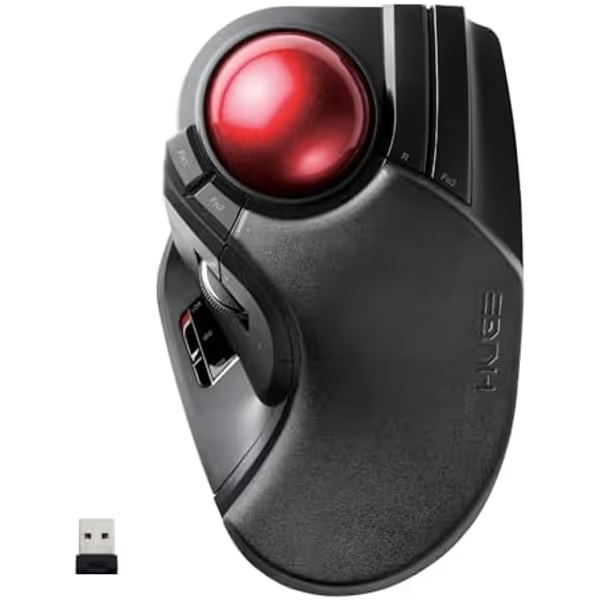
ELECOM Huge Trackball Mouse
Reduced hand movement & fatigue with precise index finger control.
Trackball Diameter52mm (Largest Elecom)
Trackball Diameter52mm (Largest Elecom)
Pros
Precise cursor control with minimal hand movement
Large, comfortable palm rest reduces fatigue
Cons
May not suit all hand sizes or grip preferences
Customers praise its precise control, though some note it may not be comfortable for all hand sizes.
Customers praise its precise control, though some note it may not be comfortable for all hand sizes.
Eight programmable buttons plus a scroll wheel create the clearest opportunity to put recurring commands under your hand - for example, browser navigation, editing commands, or application-specific tools. Its 52 mm central ball places it in a different fit category from the Orbit's 40 mm ball.
ELECOM describes the shape as ergonomic with a wide grip. Treat that as a design intent, not a promise that it will reduce your strain. The practical fit check is whether your palm can rest without gripping and whether you can operate the commands you map most often without thumb overreach or finger stretching. Start with only three or four essential assignments. Add more after a few days if the sequence is genuinely reducing keyboard travel and cognitive clutter.
4. Logitech M570: thumb-driven navigation
The Logitech Wireless Trackball M570 is a thumb-controlled wireless trackball that connects through a Logitech Unifying receiver in a computer USB port. It has a scroll wheel with middle button plus dedicated Back and Forward controls. Logitech software can reassign buttons and adjust tracking speed and acceleration; for Mac users, Logitech's guide says the software is needed to enable Back, Forward, and Middle button functions.
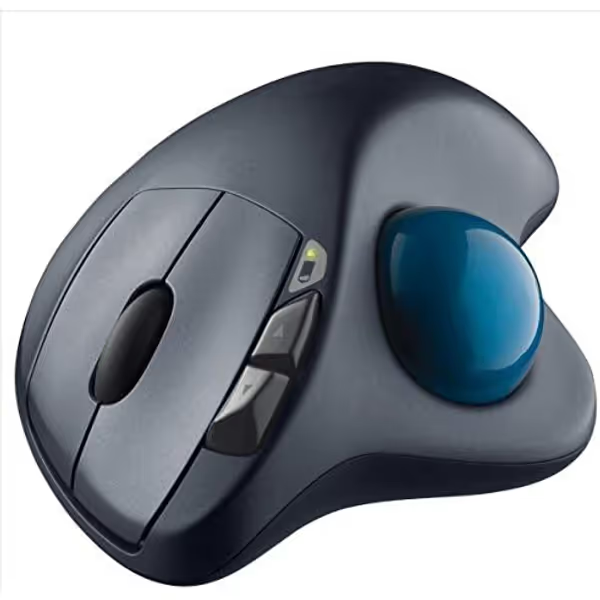
Logitech M570 Wireless Trackball Mouse
Ergonomic trackball for comfortable, precise control without arm movement.
Wireless RangeUp to 30 ft.
Wireless RangeUp to 30 ft.
Pros
Reduces hand and wrist strain with stationary design.
Works on any surface, ideal for versatile use.
Cons
Trackball design takes getting used to.
The M570 is the outlier here because cursor motion lives at the thumb, not the index and middle fingers. That makes it a practical choice only if thumb-driven navigation feels natural and remains relaxed over time. For web-heavy work, its dedicated Back and Forward buttons create an immediately understandable navigation pattern.
Do not choose it solely because you want less wrist movement. The key question is whether repeated thumb rolls are comfortable for your hand and workload. If your thumb is already sore, stiff, or prone to tingling, a finger-operated option may be the more cautious trial. That is not a medical diagnosis; it is a load-management decision.
Quick comparison: what each model is actually optimizing
| Model | Cursor control | Core controls | Connection | Best fit for |
|---|---|---|---|---|
| Kensington Orbit | Finger-operated | Scroll ring; 2 customizable buttons | Wired USB-A | Minimal controls and shared/left-hand-friendly setups |
| Kensington Expert Mouse | Finger-operated | Scroll ring; 4 customizable buttons | Wired USB-A | More commands while retaining ambidextrous use |
| ELECOM Huge | Index-finger control | 8 programmable buttons; scroll wheel | 2.4 GHz wireless USB | Shortcut-heavy workflows and wireless placement |
| Logitech M570 | Thumb-controlled | Scroll wheel/middle; Back and Forward | Wireless Unifying receiver | Straightforward thumb navigation and browser movement |
There is no evidence here for a blanket productivity ranking, so use the table as a fit-and-workflow filter rather than a leaderboard. The best productivity mouse for a spreadsheet analyst who relies on repeated commands may not be the right daily tool for a left-handed writer or a person trying to reduce thumb workload.
Set up your PC mouse trackball without creating a new strain pattern
A good purchase still needs a sensible first week. Use this safety-first checklist:
- Place the trackball close enough that your upper arm can hang easily. Reaching forward can turn pointing into a shoulder task.
- Keep the forearm supported by the desk or chair arm, without pinning the wrist. Aim for a mostly straight line from forearm through hand.
- Start at a moderate cursor speed. If you repeatedly run out of range, increase speed a step. If you overshoot small targets, reduce it. Change one setting at a time.
- Map only recurring actions. A button that saves several keyboard reaches per hour is more valuable than a clever command you never remember.
- Take short movement breaks. Every 30 to 60 minutes, release the device, open and close the hands gently, change posture, and look away from the screen. Breaks are part of the input system, not an interruption to it.
- Review the fit after real work, not a first impression. Notice whether you are squeezing, lifting the shoulder, anchoring the wrist hard, or avoiding certain buttons.
For wireless models, the wired and wireless tradeoffs documented here are about setup style: the ELECOM Huge uses a 2.4 GHz wireless USB connection, while the M570 uses a Unifying receiver. The wired Orbit and Expert Mouse avoid a receiver but require the cable path to reach your preferred device position. These facts alone do not establish a general wireless reliability or battery-life ranking.
The practical pick and your next step
Choose the Orbit when ambidextrous use, a 40 mm finger ball, and uncomplicated scrolling matter most. Choose the Expert Mouse when you want an ambidextrous, finger-operated approach with a 55 mm ball and four customizable buttons. Choose the ELECOM Huge when your main need is a wireless, index-finger trackball with extensive programmable controls. Choose the M570 when thumb control and dedicated Back and Forward buttons are your preferred pattern.
Before ordering, write down your three most repeated pointer actions and your current discomfort trigger. Then select the model whose movement finger, handedness where documented, connection, and reachable controls address those facts, not the model with the most impressive marketing phrase. Comfort first; speed shows up when pain steps aside. If wrist discomfort is your main concern, compare these choices with our guide to mice for wrist pain before making a purchase.
FAQ
What are the disadvantages of a wireless mouse in this comparison?
The documented difference is that wireless options require a USB receiver: the ELECOM Huge uses a 2.4 GHz wireless USB connection, and the M570 uses Logitech's Unifying receiver. The Orbit and Expert Mouse connect by wired USB-A instead. This comparison does not establish universal wireless drawbacks such as worse reliability or latency; choose based on whether receiver-based placement or a cable suits your desk and device.
Which trackball is best for daily use?
There is no universal winner. For daily use, prioritize the movement style you can keep relaxed: finger-operated and ambidextrous with the Orbit or Expert Mouse, index-finger-controlled with the ELECOM Huge, or thumb-controlled with the M570. Then choose the button count and connection type your actual workflow requires.
Related Articles
Trackball Mouse for Design: Ergo Tested vs Precision
Match thumb- and finger-operated trackballs to your hand dimensions and design specialty with a measurement-led framework that clarifies the trade-offs between comfort and precision, including data-backed comparisons of the MX Ergo S and Kensington Expert. Use the step-by-step sizing protocol to pick the right ball diameter and shape for sustained comfort and sub-millimeter control.