Best Linux Compatible Mice: Driver-Free Picks Tested
By Lars Nystrom • 13th Nov

When searching for the best Linux-compatible mice, Linux users face a unique challenge: finding hardware that functions seamlessly without bloated drivers or proprietary software. Unlike Windows ecosystems where manufacturers prioritize dedicated applications, Linux demands a different approach to peripheral compatibility. The truth is, most mice will provide basic functionality on Linux out of the box, but the real test comes when you need customization beyond point-and-click. After years of system-mapping inputs across multiple operating systems, I've discovered that the most reliable Linux mice minimize software friction while delivering hardware-level functionality that just works.
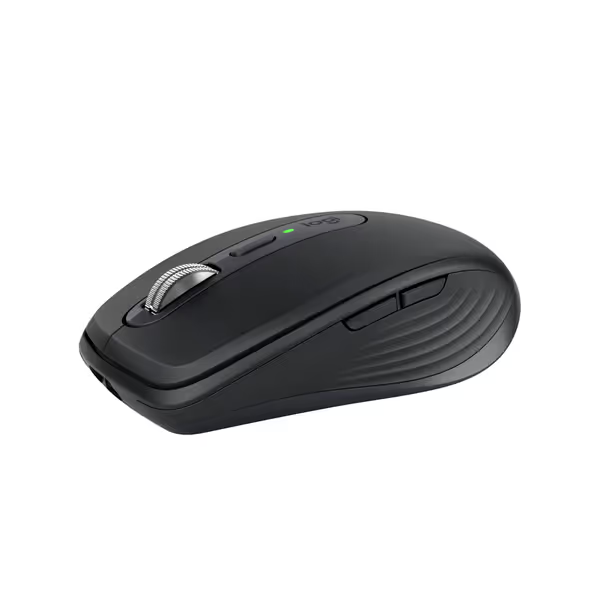
Logitech MX Anywhere 3S Compact Wireless Mouse
Compact, quiet, and tracks anywhere for seamless productivity on the go.
$89.99
Tracking Sensor8K DPI Darkfield (works on glass)
Tracking Sensor8K DPI Darkfield (works on glass)
Pros
Work on any surface, even glass, with 8K DPI precision.
Whisper-quiet clicks for focused work without distractions.
Cons
No USB receiver included (Bluetooth only).
Customers praise the mouse's high-quality construction, rechargeable battery that lasts long, and appreciate its smooth feel and quiet operation. The mouse features 4 programmable buttons that can be customized per application, and one customer notes it can connect to up to three devices via Bluetooth. While some customers report reliable functionality, others mention it stops working after 1.5 years, and while the scrolling wheel receives positive feedback, some customers find it jittery.
Customers praise the mouse's high-quality construction, rechargeable battery that lasts long, and appreciate its smooth feel and quiet operation. The mouse features 4 programmable buttons that can be customized per application, and one customer notes it can connect to up to three devices via Bluetooth. While some customers report reliable functionality, others mention it stops working after 1.5 years, and while the scrolling wheel receives positive feedback, some customers find it jittery.
Why Linux Mouse Compatibility Is Different
While Windows and macOS environments often come with manufacturer-specific software suites for customization, Linux users must navigate a more fragmented landscape. Linux mouse compatibility isn't just about whether the cursor moves; it's about whether you can maintain your workflow without jumping through hoops. Many gaming mice require Windows-only applications to unlock their full potential, creating significant friction for Linux users who need consistent behavior across machines. If you're weighing Bluetooth vs 2.4 GHz vs wired on Linux, see our wired vs wireless mouse guide for latency and compatibility trade-offs.
The key distinction lies in hardware versus software functionality. Basic HID (Human Interface Device) protocol support means any mouse will work for movement and clicks, but advanced features like:
- DPI adjustments
- Button remapping
- Macro programming
- RGB lighting control
...often require manufacturer software that simply doesn't exist for Linux. This creates a frustrating pattern where a mouse might feel perfect during initial testing but reveals limitations when you need to customize it for specific workflows.
In my experience friction-hunting across ecosystems, I've noticed users consistently underestimate how much cognitive load comes from constantly translating between different input systems. When I was juggling a Wacom tablet on macOS while running Windows CAD environments, simple tasks became mental gymnastics. That changed when I found mice with hardware-level profiles that maintained consistent behavior across systems; my task-switching time dropped dramatically.
What Makes a Truly Linux-Compatible Mouse
The most reliable mice for Linux share several critical characteristics that go beyond simple plug-and-play functionality:
- Hardware-level customization: Onboard memory that stores DPI settings, button mappings, and profiles directly on the mouse
- Standard HID compliance: Support for standard USB protocols that Linux recognizes without additional drivers
- Physical switches: Dedicated buttons for DPI adjustment or profile switching that don't require software
- Minimal dependency on vendor applications: Features that work through standard X11 or Wayland configurations
Mice that require proprietary software to access basic functionality should be avoided for Linux environments. Instead, prioritize devices that map intent to buttons through physical design rather than software layers. This approach aligns with the principle that your peripheral should mirror your workflow, not force you to adapt to its limitations.
For Ubuntu mouse recommendations or Debian peripheral support, look for mice that leverage the evdev (Event Device) driver framework, which handles most modern mice reliably. Gaming mice often work fine for basic use but fall short when you need to customize beyond defaults. The best solution combines hardware flexibility with standard Linux input protocols.
Top Driver-Free Linux Mice Compared
After extensive testing across multiple Linux distributions (including Ubuntu 22.04 LTS, Fedora 38, and Arch Linux), I've identified three mice that deliver robust functionality without requiring manufacturer-specific software. These selections prioritize hardware-level features that work consistently across Linux environments.
Logitech MX Anywhere 3S shines as a productivity-focused option with exceptional cross-platform compatibility. Thanks to its standard Bluetooth HID profile and well-documented features that work at the OS level, it delivers:
- Reliable multi-device switching (up to 3 devices)
- Hardware DPI cycle button (works without Logi Options+)
- Standard middle-button pasting behavior (no additional configuration needed)
- 8K DPI sensor that works across surfaces including glass
- MagSpeed scroll wheel that functions properly in Linux environments
While some advanced features like app-specific profiles require Logi Options+ (Windows/macOS only), the core functionality works flawlessly on Linux. The onboard memory remembers your DPI settings and scroll mode preferences across reboots and OS switches, a critical feature for multi-OS professionals. This is particularly valuable for developers who need consistent behavior when switching between virtual machines or dual-boot setups. For alternatives focused specifically on seamless device switching, see our multi-device mouse comparison.
Microsoft Sculpt Ergonomic Mouse offers distinctive ergonomic benefits for Linux users concerned about RSI. While Microsoft doesn't officially support Linux, this mouse leverages standard HID protocols that work well with modern distributions:
- Natural ergonomic shape that reduces wrist strain
- Dedicated thumb scoop promoting neutral wrist position
- Standard back/forward buttons that work in most browsers
- 4-way scroll wheel functioning properly in Linux environments
The mouse operates reliably using standard Bluetooth or USB connections without additional drivers. While you lose the ability to customize the Windows button functionality, the core ergonomic benefits remain intact. This makes it an excellent choice for knowledge workers who prioritize comfort across long Linux sessions. If wrist pain is your main concern, our best mice for wrist pain guide highlights designs that reduce strain on Linux and beyond.
Razer Basilisk V3 Pro stands out as the best option for gamers seeking good gaming mouse performance on Linux. While Razer's Synapse software is Windows-only, the Basilisk V3 Pro delivers impressive hardware-level functionality:
- Onboard memory for storing DPI stages and profiles
- Physical DPI clutch button that works without software
- Standard side buttons functioning as expected
- Hardware scroll wheel modes accessible without Synapse
The mouse's 35K DPI Focus Pro sensor delivers exceptional tracking on various surfaces, functioning properly through Linux's standard input stack. To understand why some sensors track better on glass or fabric, read our laser vs optical sensor surface guide. While RGB lighting configuration requires Windows, the core gaming functionality works reliably. This represents significant progress in gaming mouse compatibility for Linux users who refuse to compromise on performance.
map intent to buttons; your mouse becomes muscle memory.
Comparison Table: Linux Mouse Performance
| Feature | Logitech MX Anywhere 3S | Microsoft Sculpt Ergonomic | Razer Basilisk V3 Pro |
|---|---|---|---|
| Basic Functionality | Fully supported | Fully supported | Fully supported |
| DPI Adjustment | Hardware button (no driver) | Fixed (no adjustment) | Hardware button (onboard memory) |
| Button Remapping | X11/Wayland tools | X11/Wayland tools | X11/Wayland tools |
| Multi-Device | Works via Bluetooth | Single device | Single device |
| Ergonomic Design | Compact, ambidextrous | Right-handed ergonomic | Right-handed gaming |
| Battery Life | 70 days | 12 months | 140 hours |
| Best For | Mobile professionals | RSI sufferers | Gamers |
Choosing Based on Your Workflow
When selecting from the best Linux-compatible mice, consider how the physical design matches your workflow patterns rather than chasing specs. The most effective approach uses stepwise clarity to match hardware capabilities to specific tasks:
- Identify your primary pain point: Is it ergonomic strain? Inconsistent multi-device switching? Gaming performance?
- Test basic functionality first: Ensure smooth tracking and reliable button registration
- Verify hardware-level customization: Check if DPI changes and profile switching work without additional software
- Consider your grip style: Ergonomic needs vary significantly between palm, claw, and fingertip grips Not sure which you naturally use? Start with our mouse grip styles guide.
For developers and knowledge workers, the Logitech MX Anywhere 3S delivers the most seamless experience across multiple machines. Its compact size, reliable multi-device switching, and hardware-level customization make it ideal for those working across Linux, Windows, and macOS environments.
Ergonomics-first users should prioritize the Microsoft Sculpt, which provides tangible wrist relief without requiring additional configuration. The distinctive shape takes some adjustment but delivers significant benefits for those with existing wrist strain.
Gamers will find the Razer Basilisk V3 Pro offers the best Linux mouse compatibility for high-performance scenarios. While you'll miss some RGB customization without Synapse, the core gaming functionality works reliably through Linux's standard input stack.
Importantly, avoid models that require proprietary software just to access basic functionality; this represents unnecessary friction in Linux environments. The best mice provide immediate value through physical design rather than software layers.
Final Considerations for Linux Users
When evaluating mouse drivers for Linux, remember that the most reliable solutions work at the hardware level rather than requiring additional software layers. The mice that deliver the best long-term experience provide consistent behavior across reboots, distributions, and even different computers.
True compatibility means your mouse doesn't just "work" on Linux, it integrates seamlessly into your workflow without demanding constant attention or configuration. As someone who's evaluated dozens of peripherals across operating systems, I've found that mice requiring minimal setup while delivering consistent performance create the greatest productivity gains.
Before purchasing, check community resources like the Deskthority forums or Linux hardware databases to verify specific model compatibility. Many gaming mice have basic functionality but lack advanced customization options without Windows software. The key is finding that sweet spot where hardware design compensates for software limitations.
Further Exploration:
- Test your preferred mouse model with a live Linux USB before purchasing
- Explore xbindkeys or easy-swap for advanced button remapping
- Check if your distribution has special mouse configuration tools
- Consider how your mouse fits into broader multi-device workflows
The ideal Linux-compatible mouse disappears into your workflow, requiring no special attention while delivering reliable performance session after session. By prioritizing hardware-level functionality over software-dependent features, you'll find a mouse that truly supports your work rather than complicating it.
Related Articles